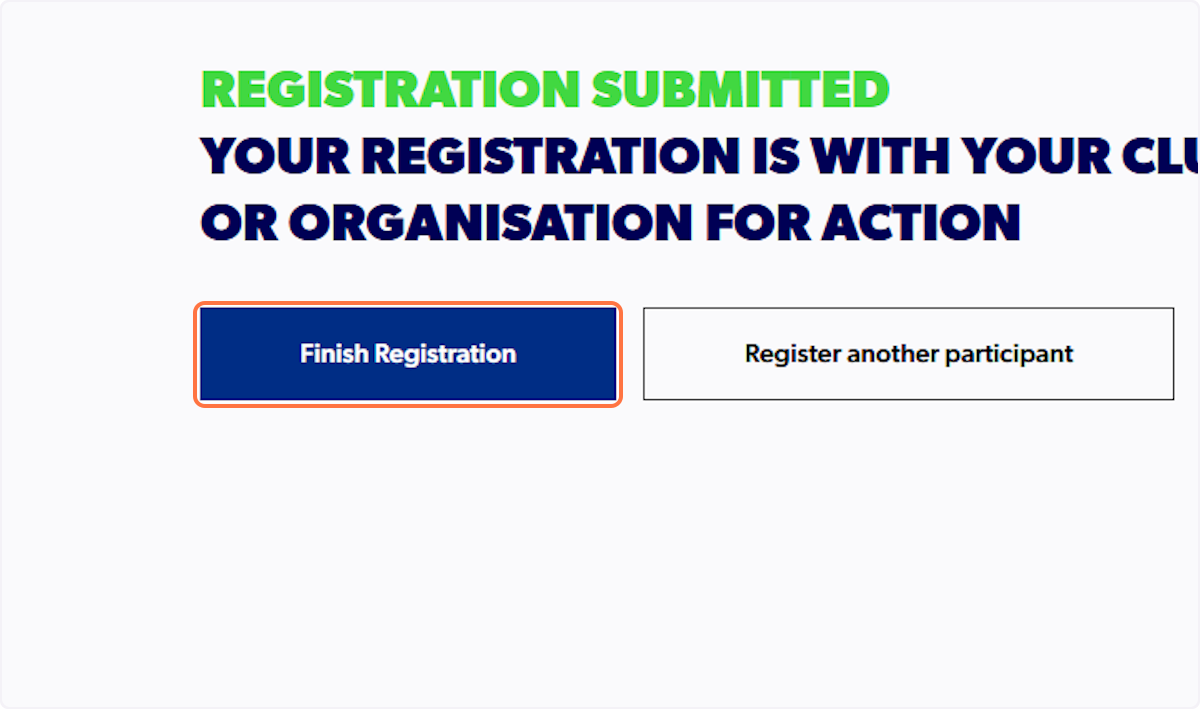
Quick Summary: On PlayFootball select 'New to Football' and select the club from the map view. Sign into your Football Network account and select 'details' on the appropriate product from the list. Register as 'Myself' and fill in all necessary fields to complete the registration.
If you are registering on behalf of somebody else who has never played before, please see HERE.
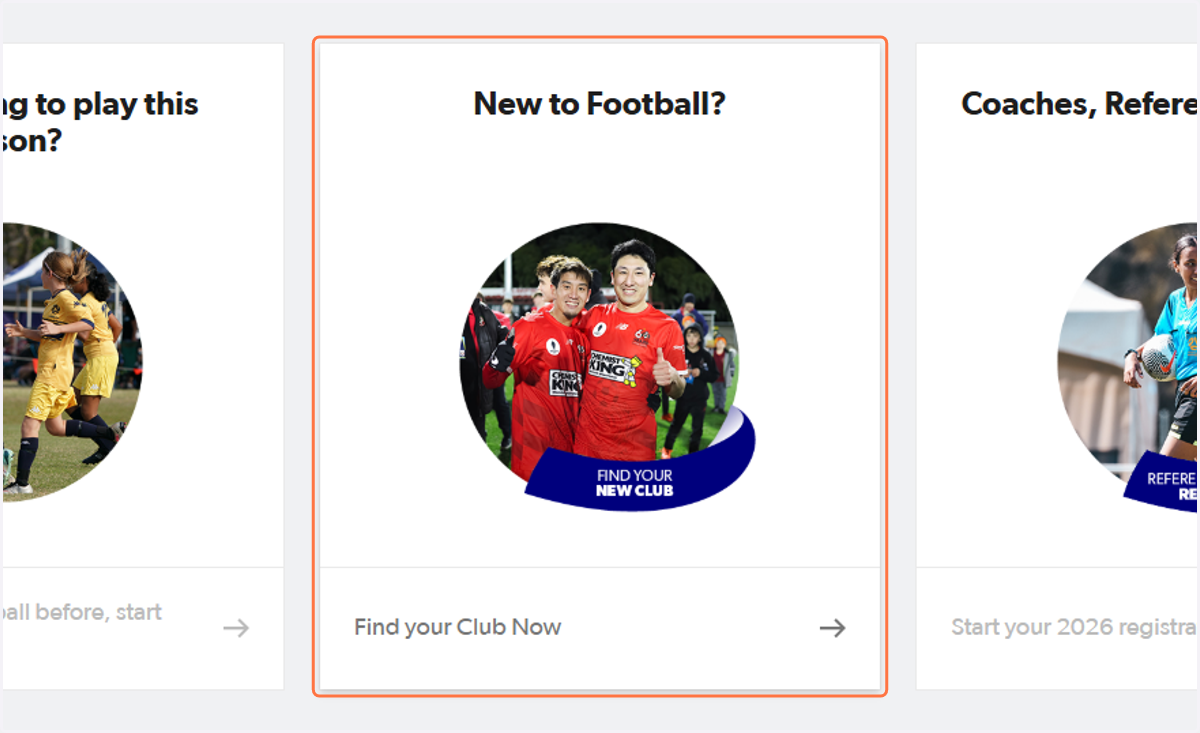
1. Go to playfootball.com.au and click on 'New to Football?'
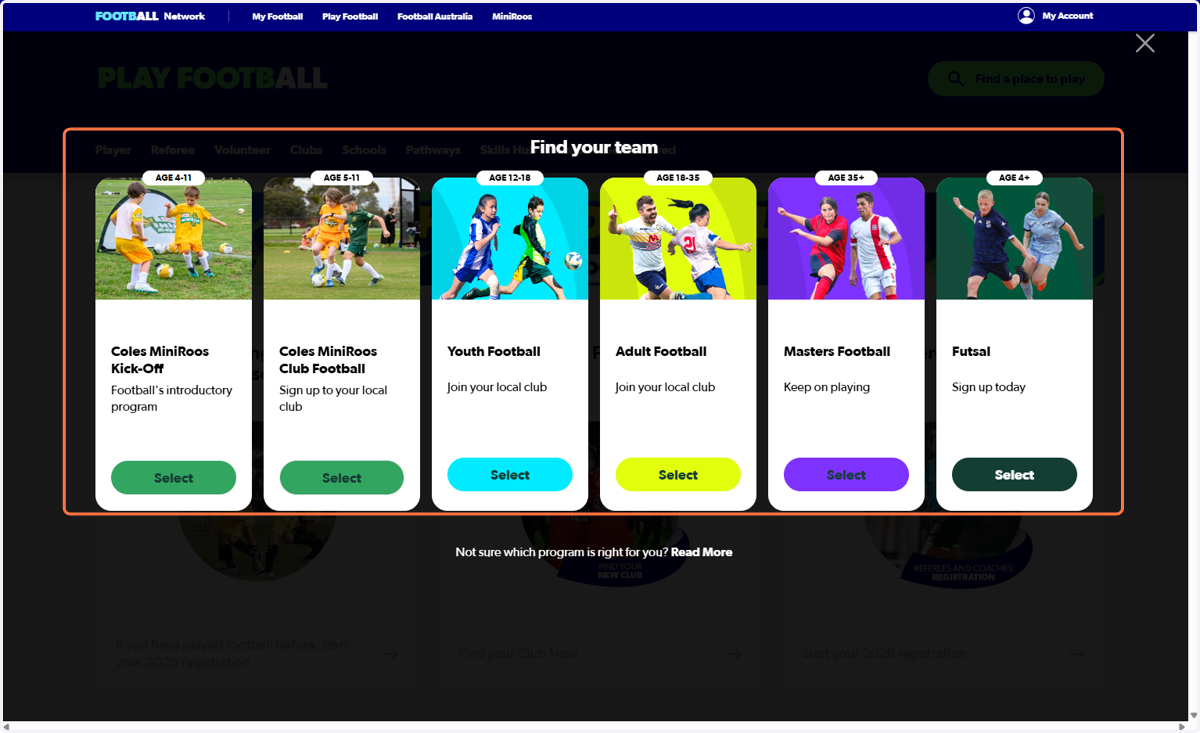
2. Select the age group
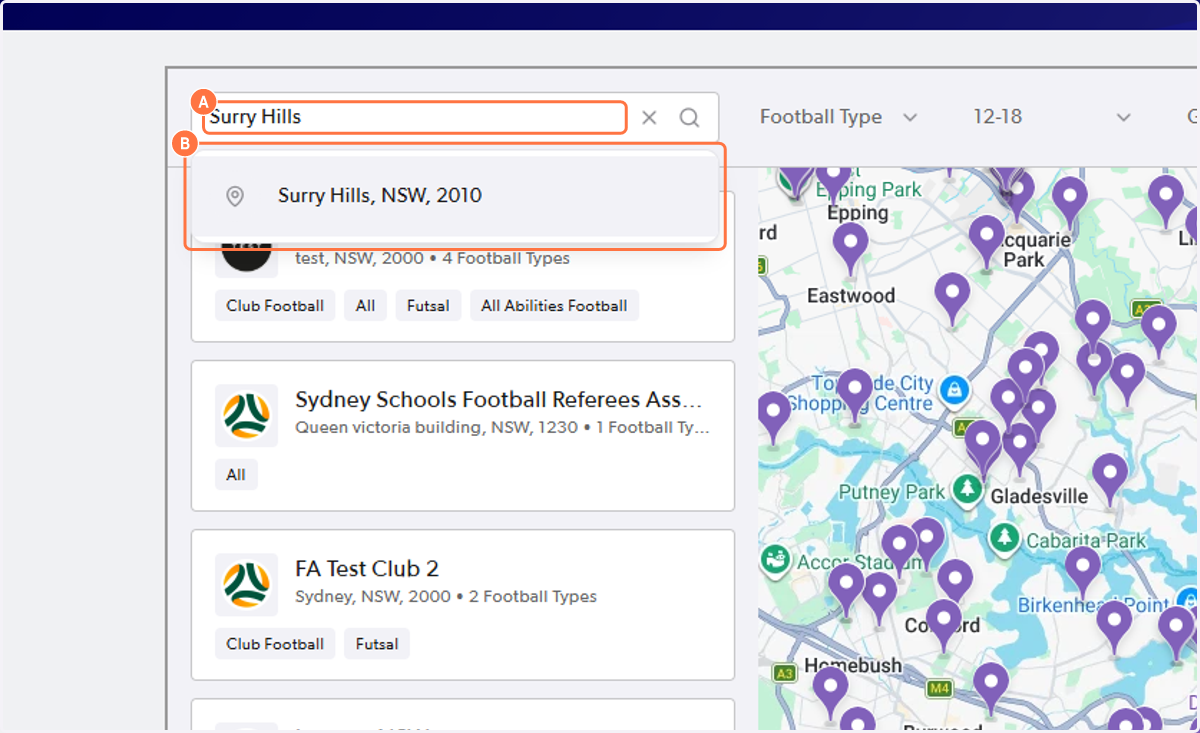
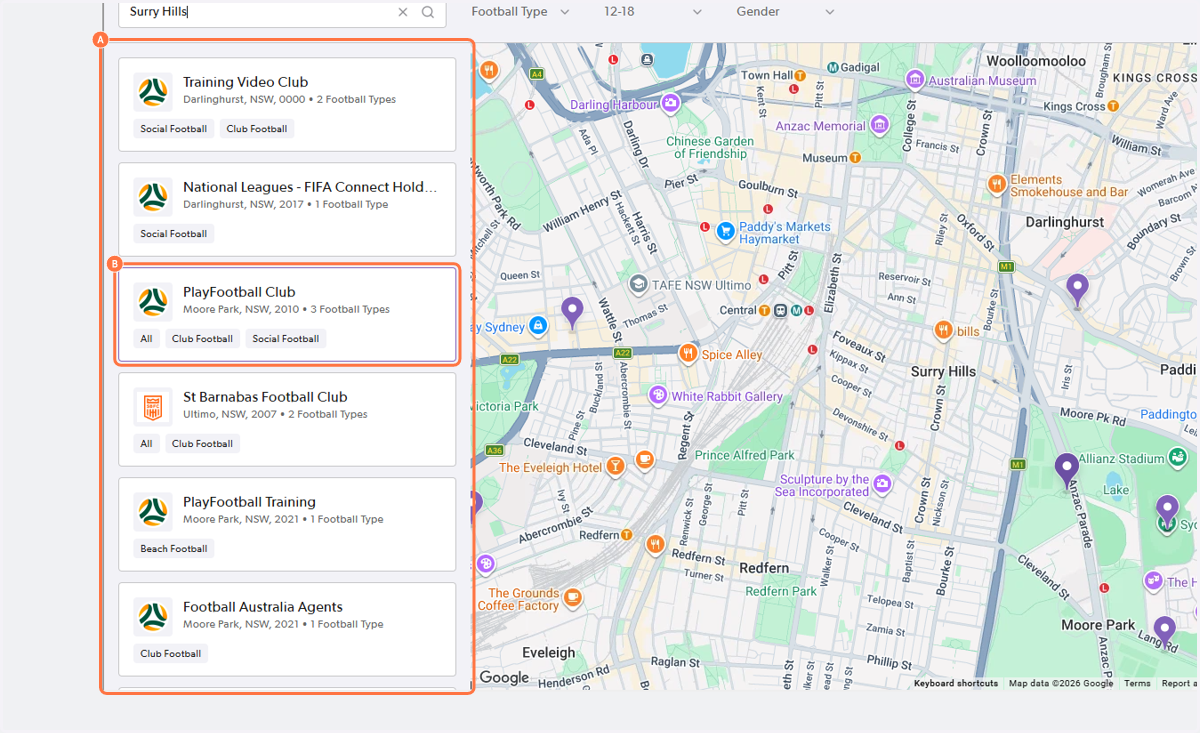
3. Enter the postcode, suburb or club name in the search bar and select the suitable option
4. Go through the list and determine what club may be the most suitable option
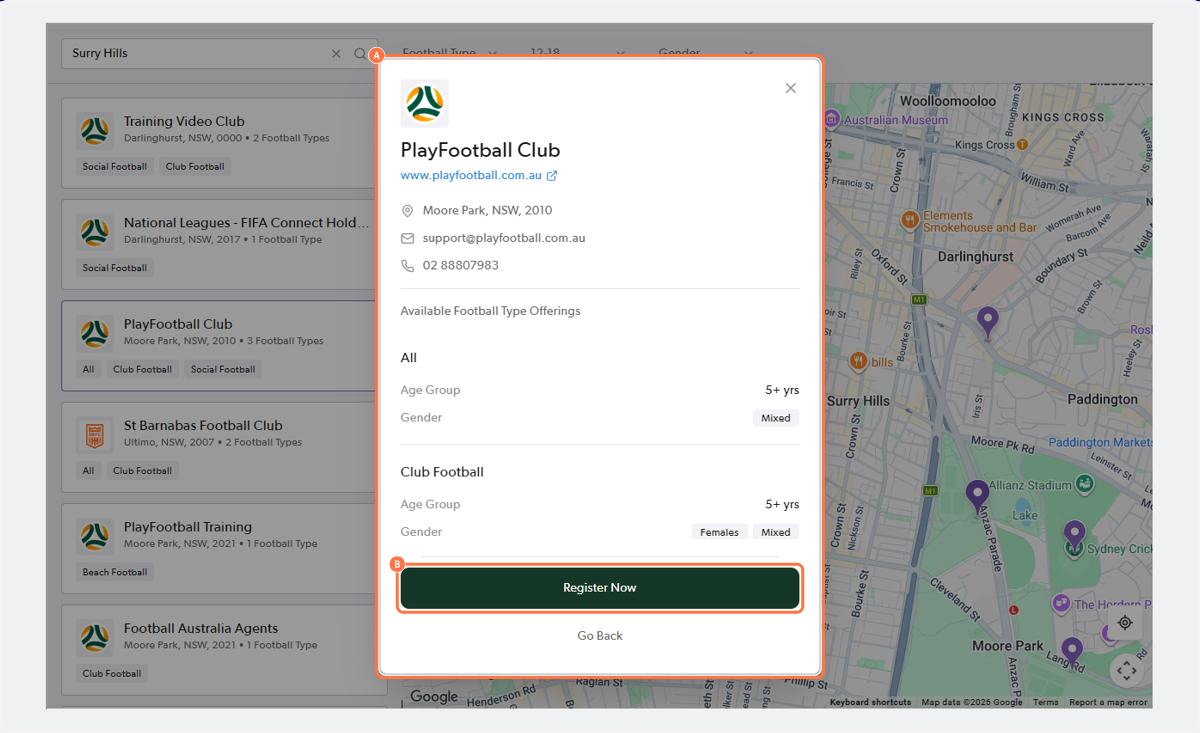
By clicking on each club, you will be given more information on the club
5. Once you find the club, click 'Register Now'
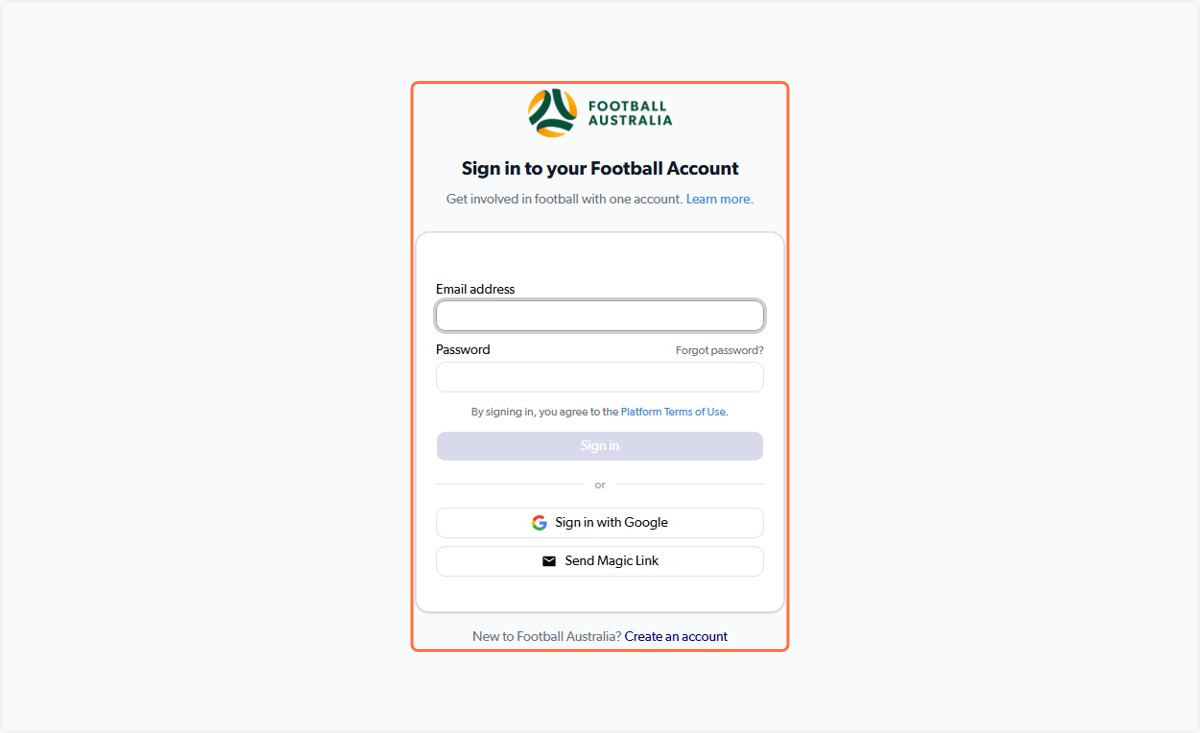
6. Sign in to your Football Account
If you have not created a Football Account, please select 'Create an Account' at the bottom of the page before continuing.
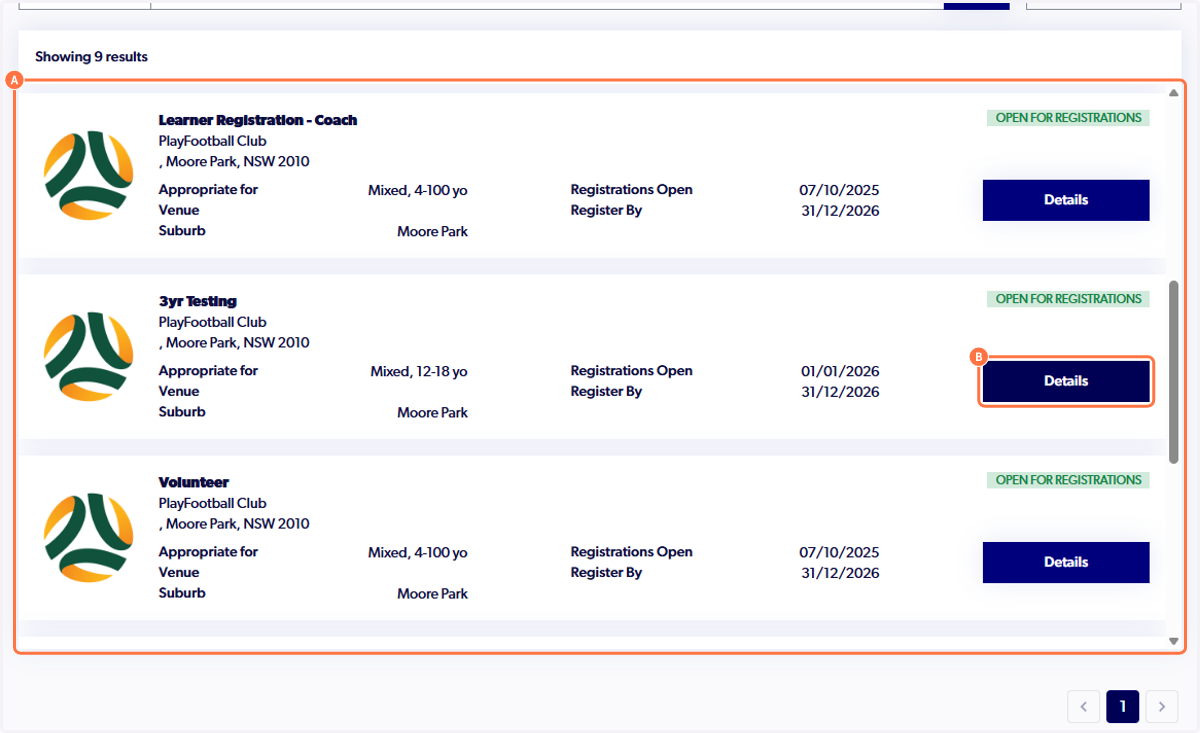
7. Locate the correct registration product and click 'Details'
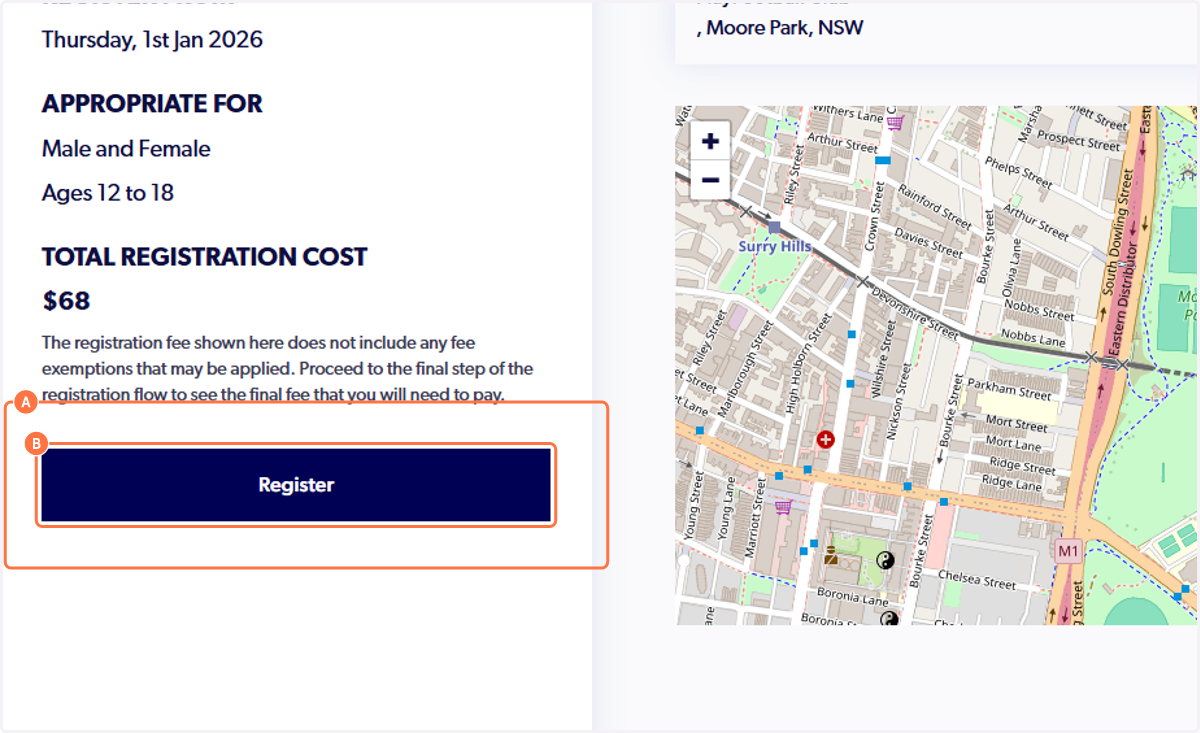
8. Click on 'Register'
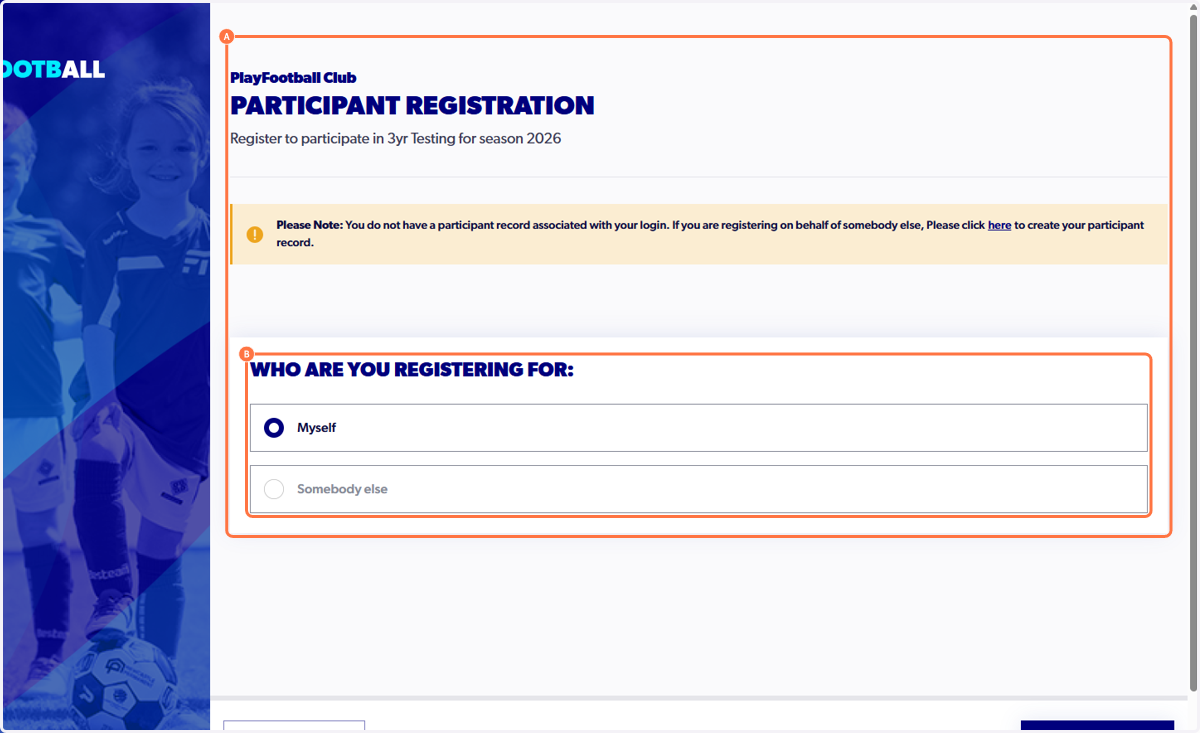
9. Select 'Myself'
You will not need to select the 'Create participant record' before continuing if you are self-registering.
A participant record only needs to be created prior if you are registering on behalf of somebody.
10. Click on 'Continue'
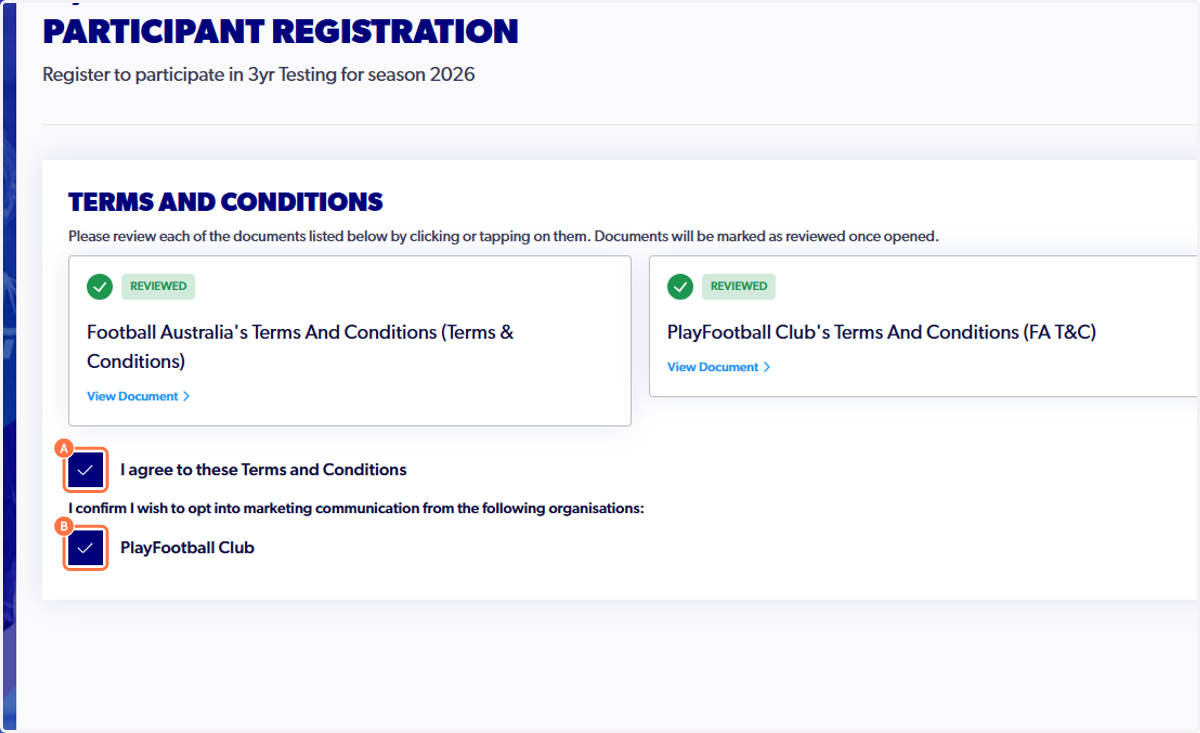
11. Review the 'Terms and Conditions' and marketing communication options
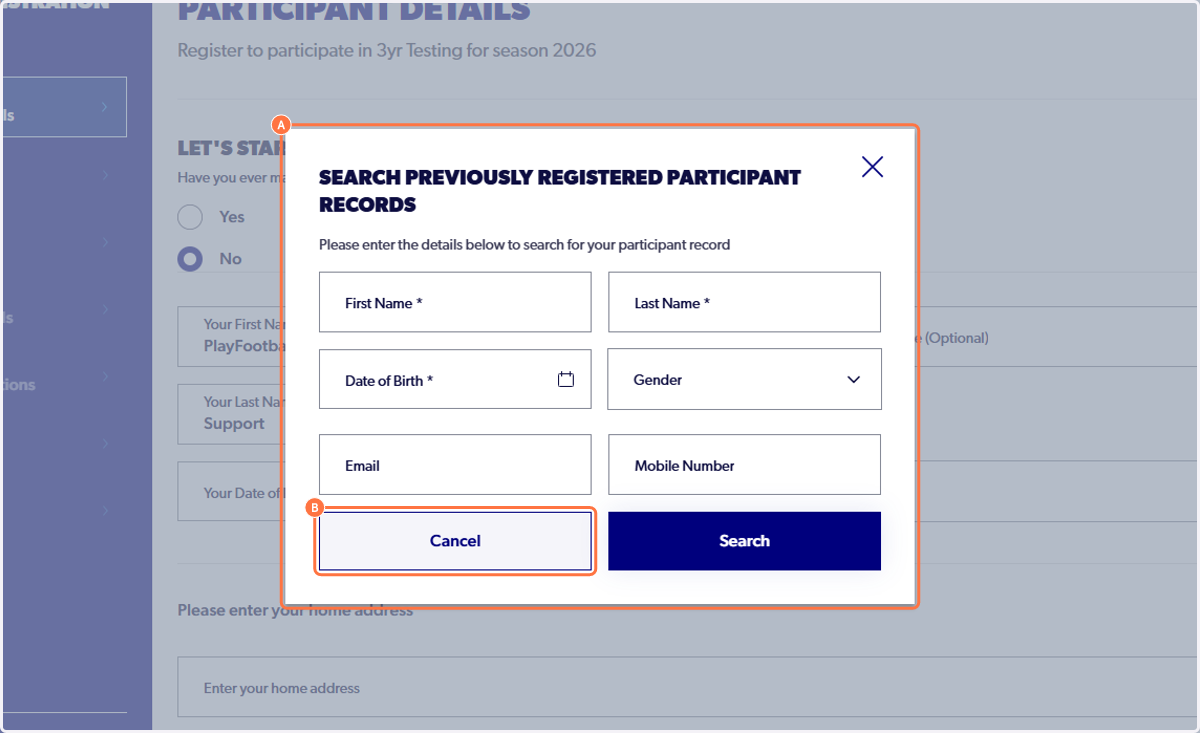
12. A pop-up box will appear, select 'Cancel'
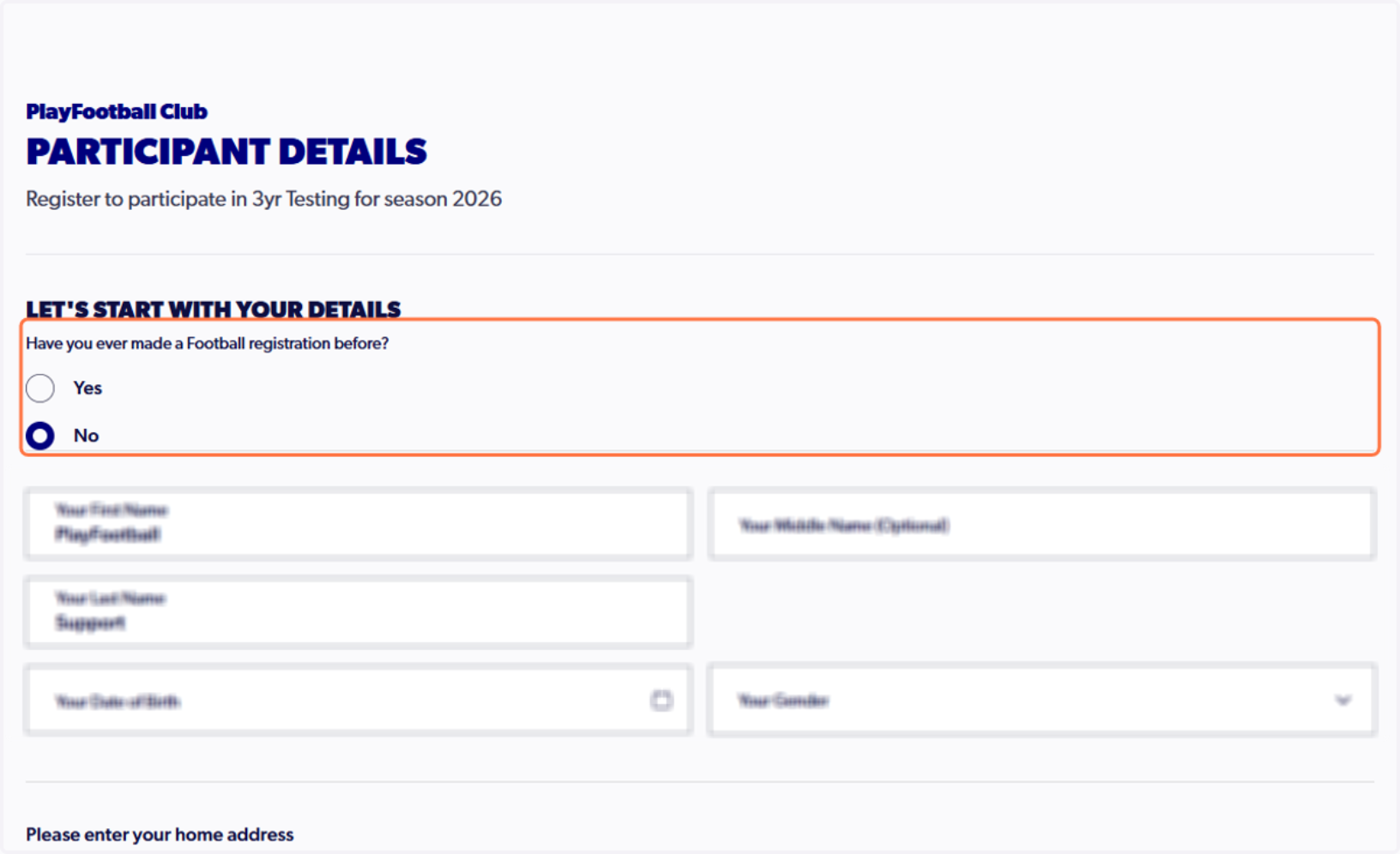
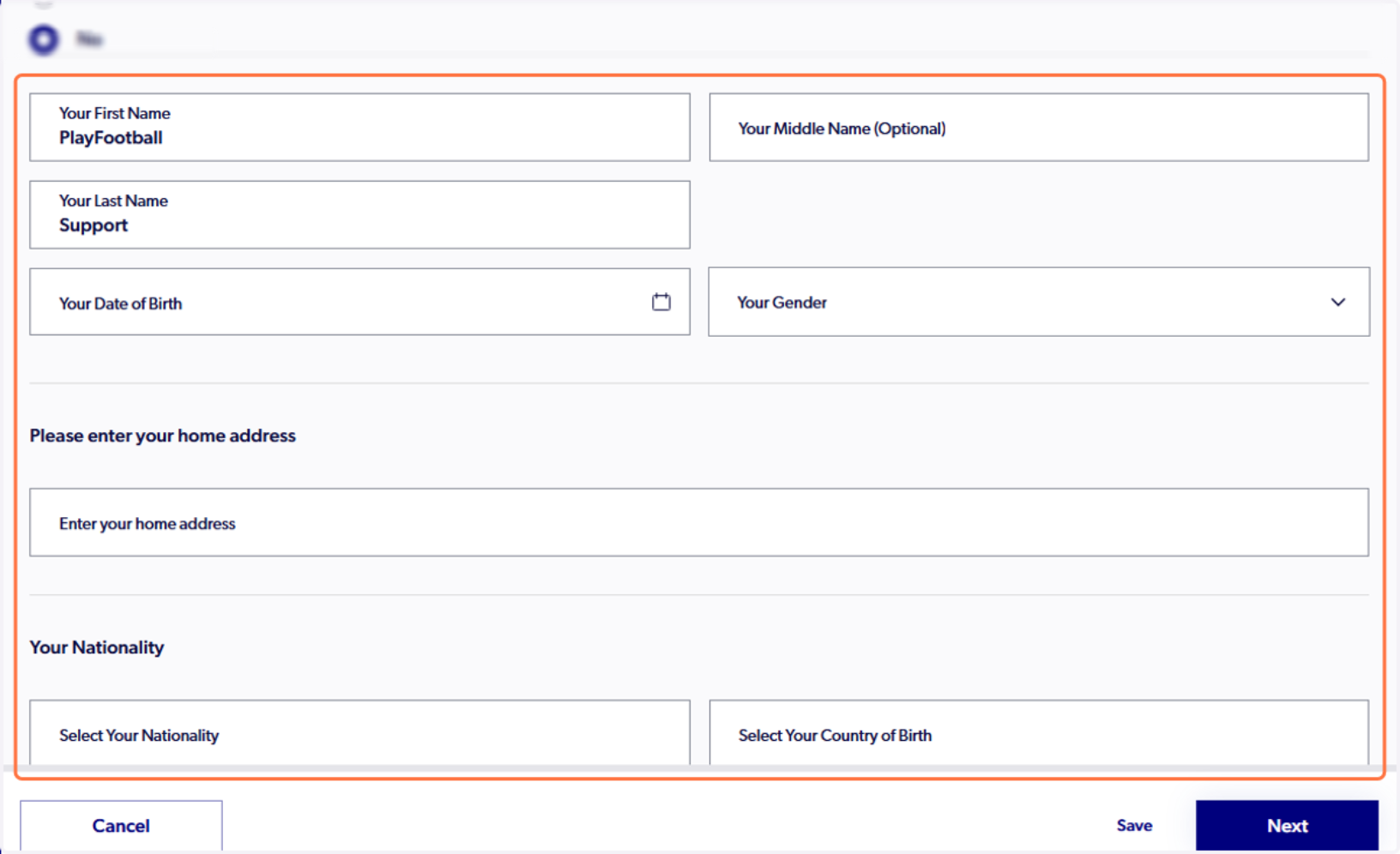
13. Ensure that 'No' is selected and fill out the form
15. Click on 'Next'
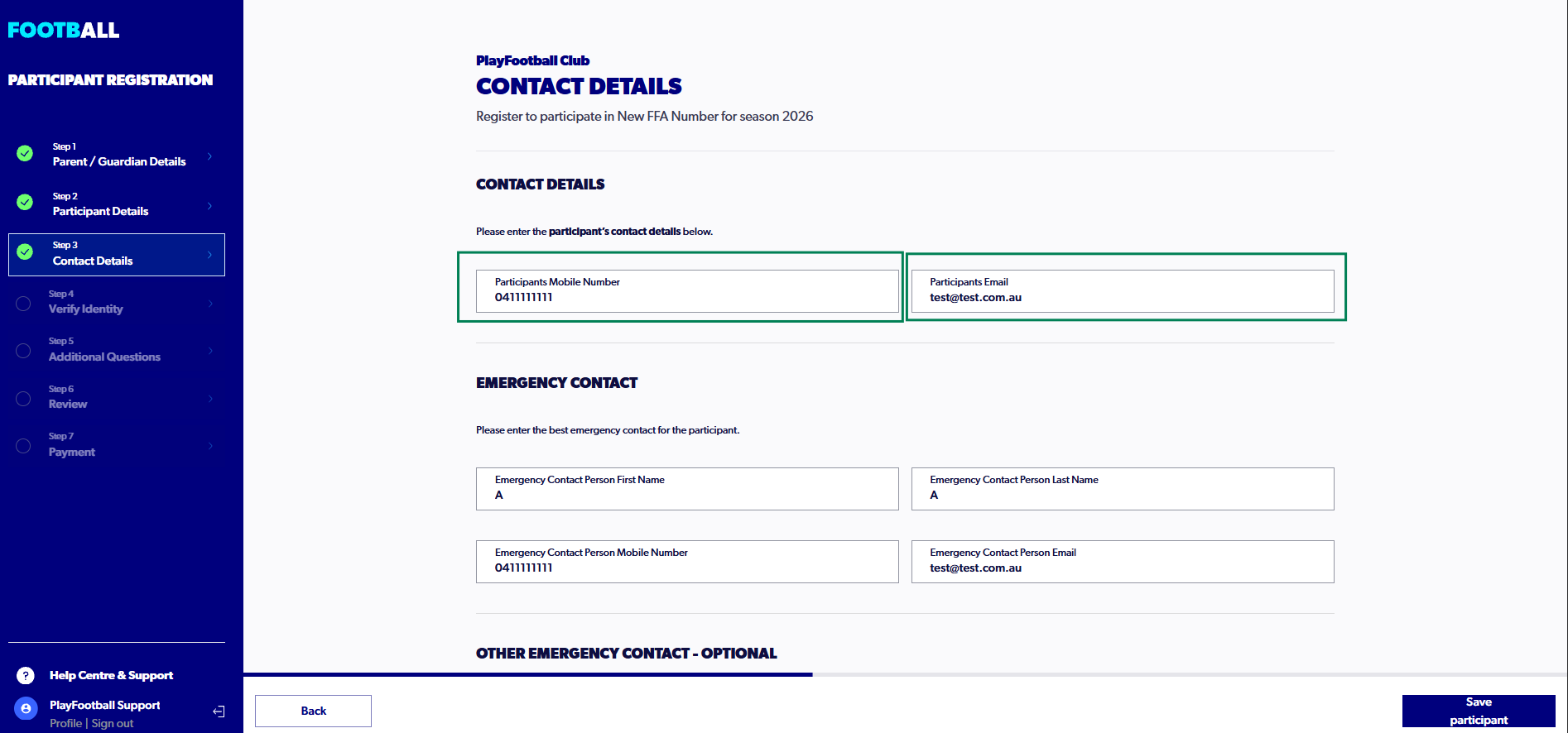
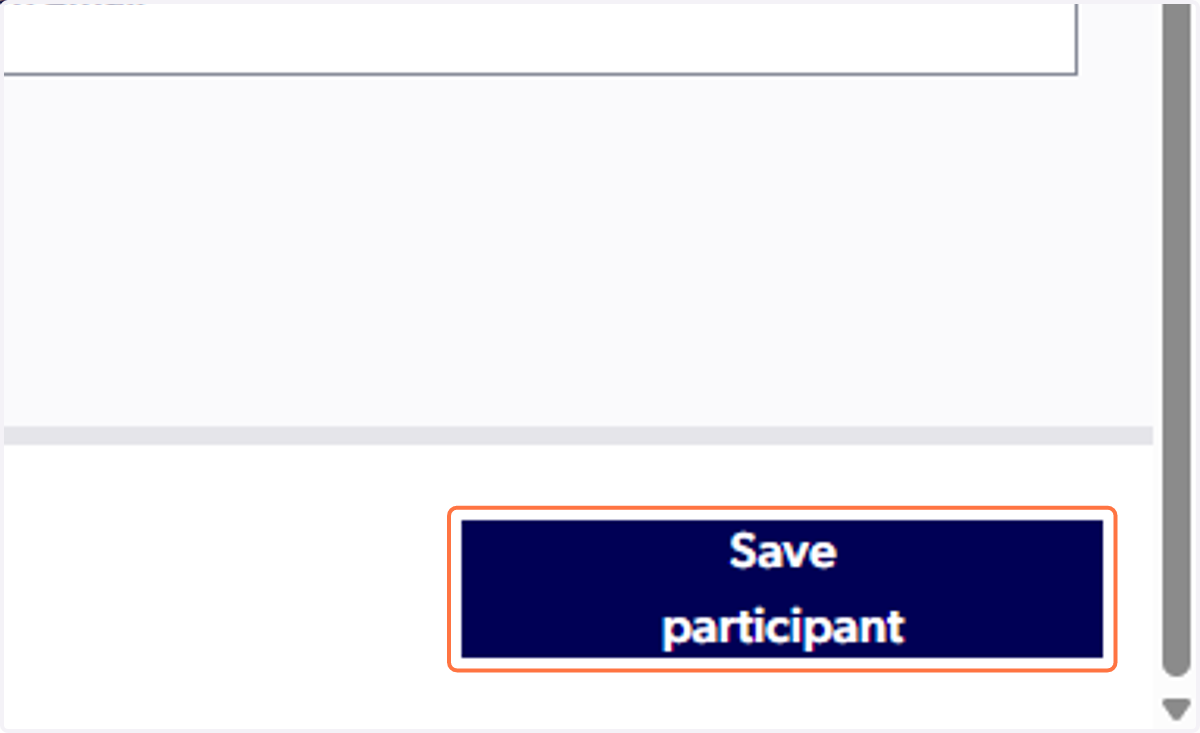
16. Type in the the contact details and select 'Save Participant'
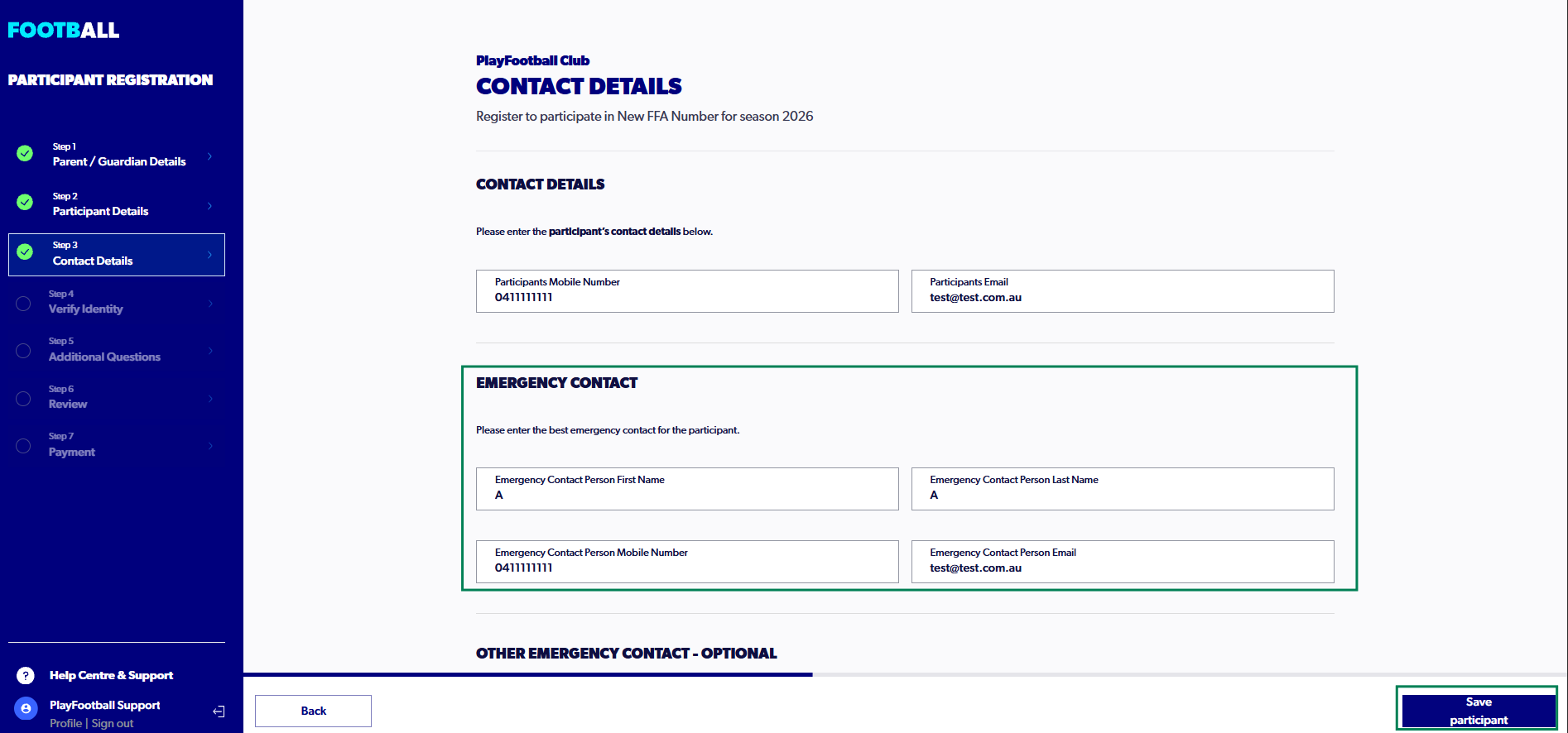
17. Enter an Emergency Contact and Click On "Next" (You may enter a secondary emergency contact should you need to)
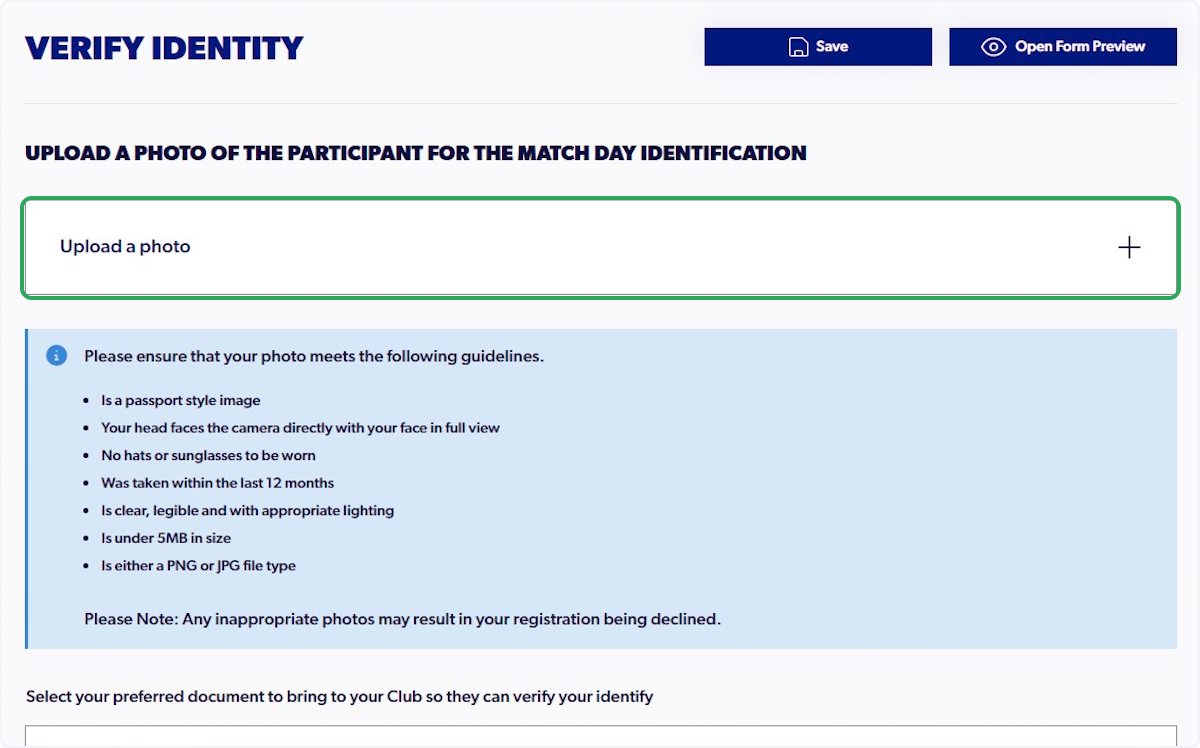
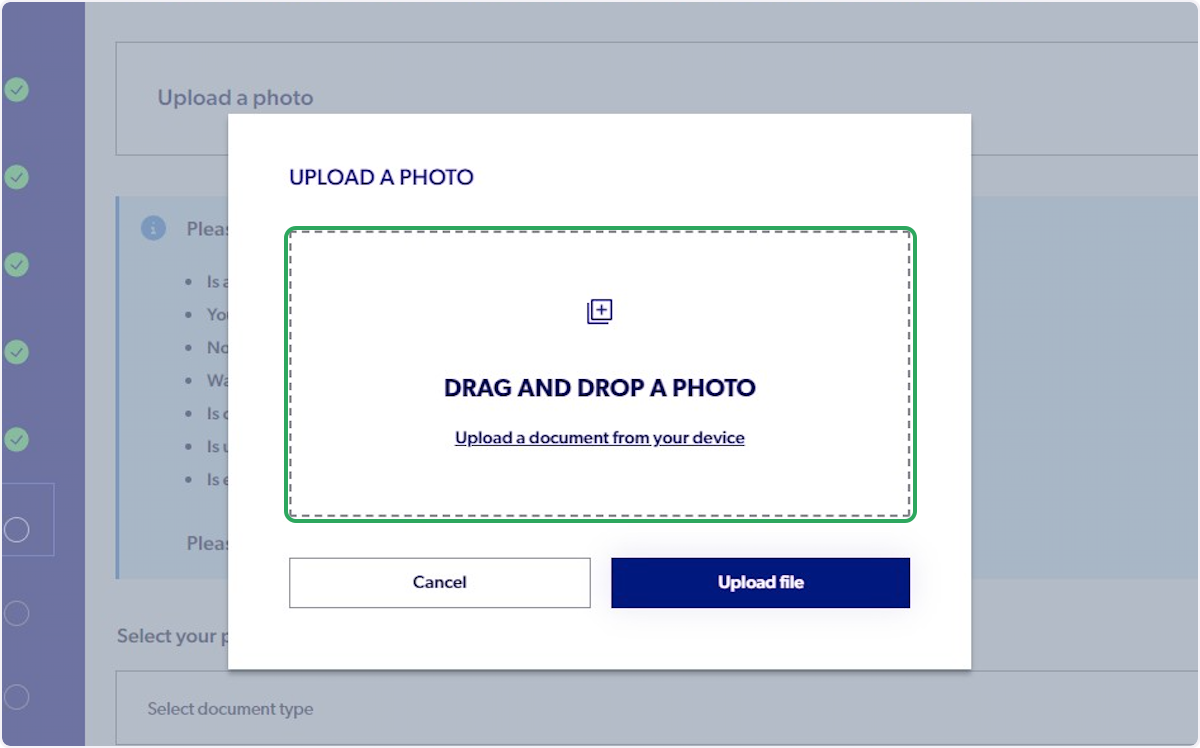
18. Click On "Upload a photo"
Please ensure you do not upload any sensitive documents as your identity photo (i.e. Passport, Driver’s License)
19. Upload a document from your device and click on 'Next'
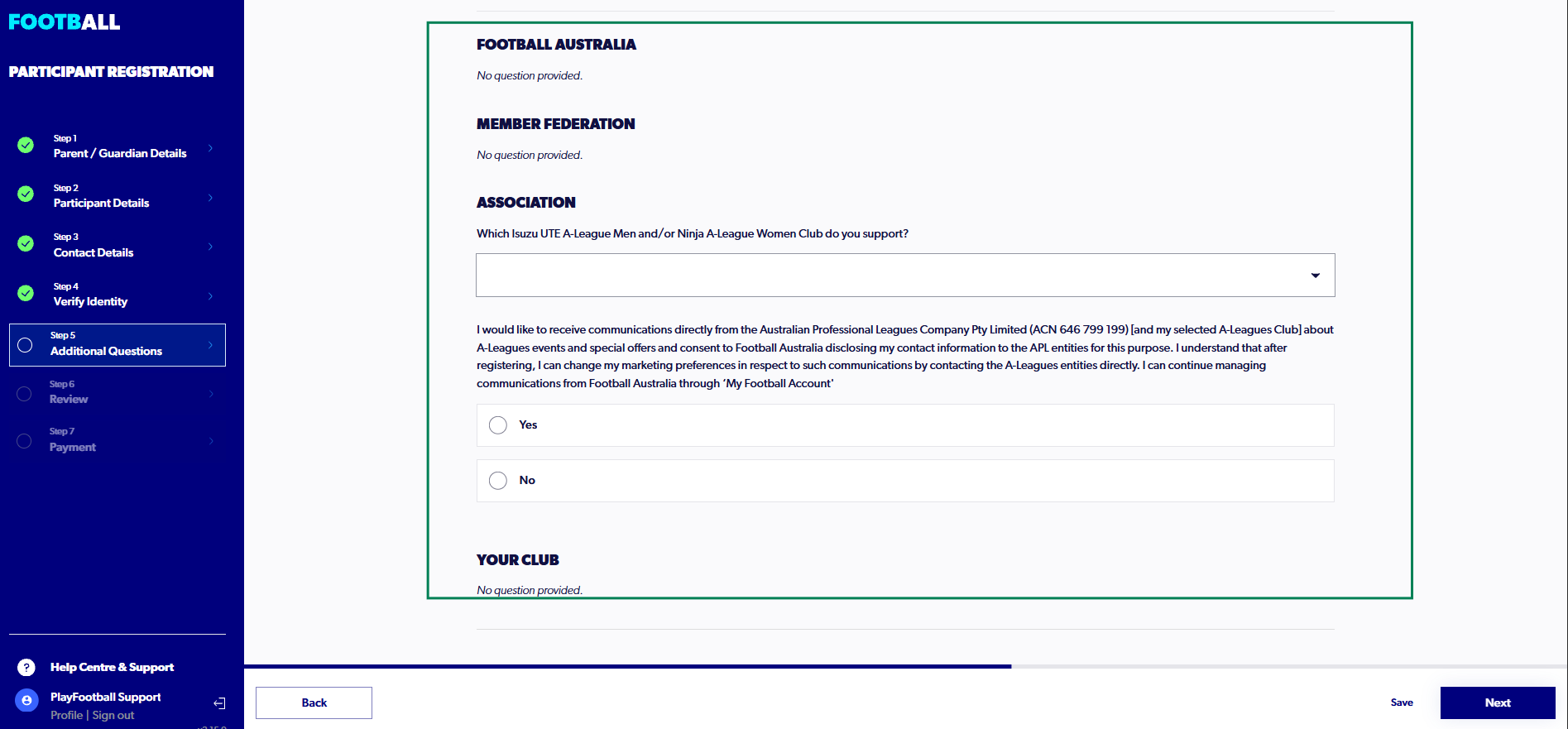
20. Answer the Additional Questions and click on 'Next'
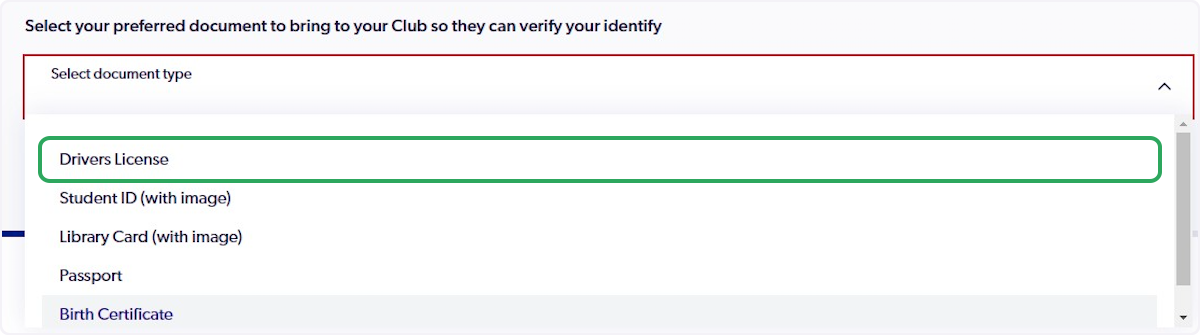
21. Click On "Select Document Type" and select the document.
Please note, you do not need to upload this document to the registration. This is only for club verification if requested.
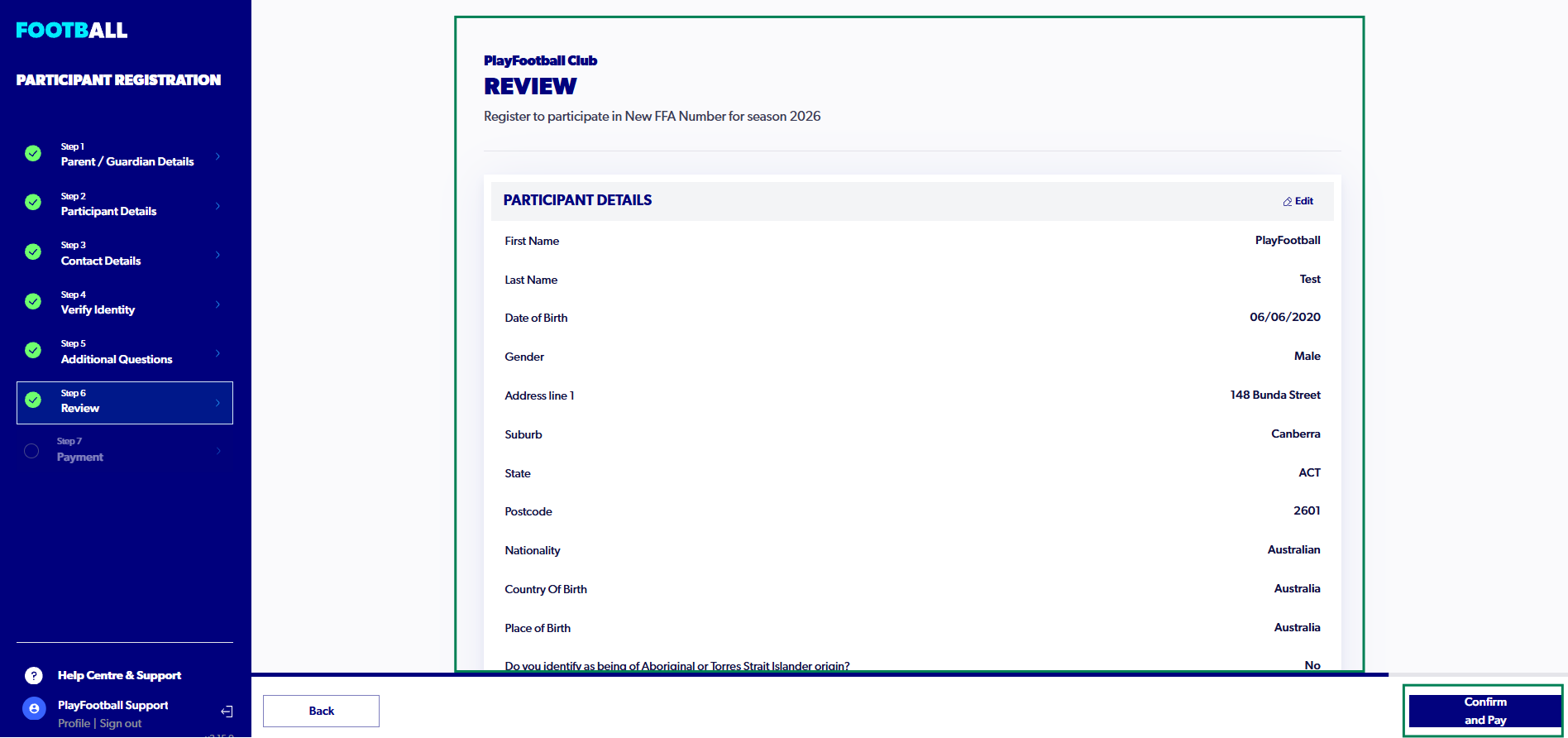
22. Review all of the details and Click On "Confirm and Pay"
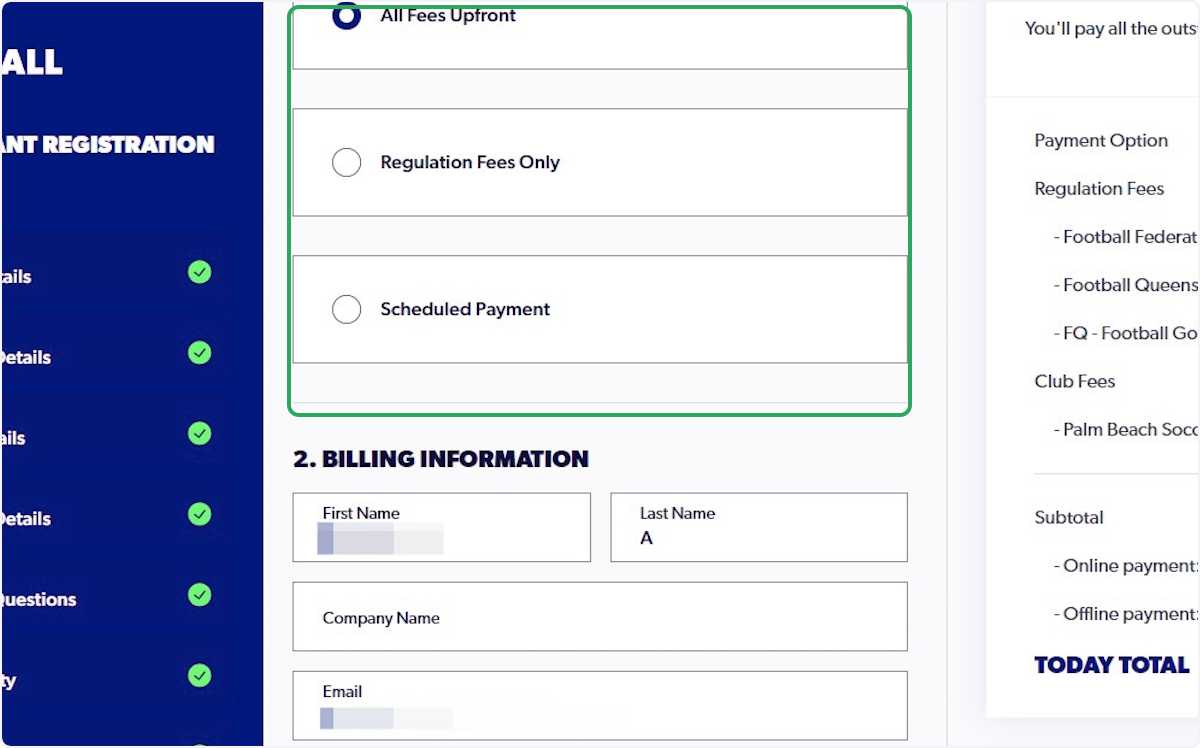
23. Select the appropriate Payment Type
24. Enter your card details or select GPay or Apple Pay options
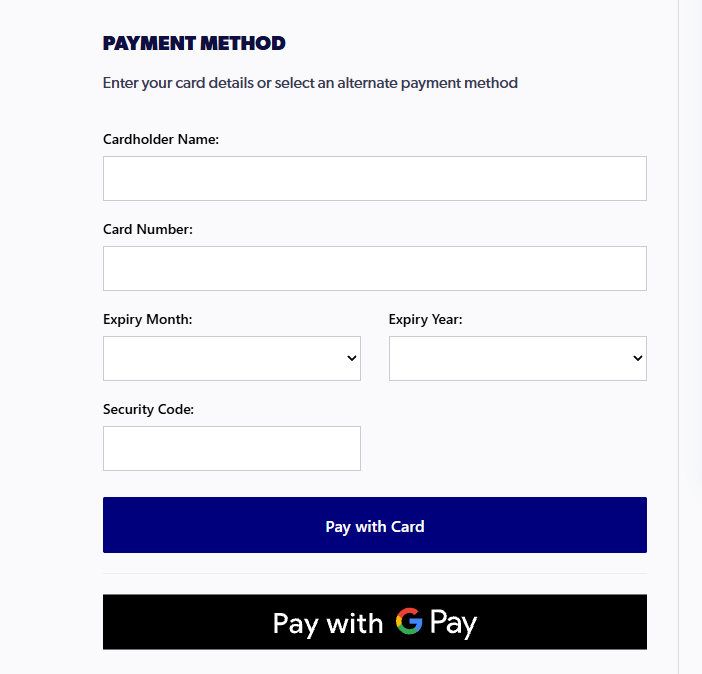
25. Click On 'Pay with Card'

26. The following screen will appear after successful payment and registration