Quick Summary: A new participant profile can only be created through a registration flow. You currently cannot add a new profile through the family management section.
Step 1: Sign into your Play Football account
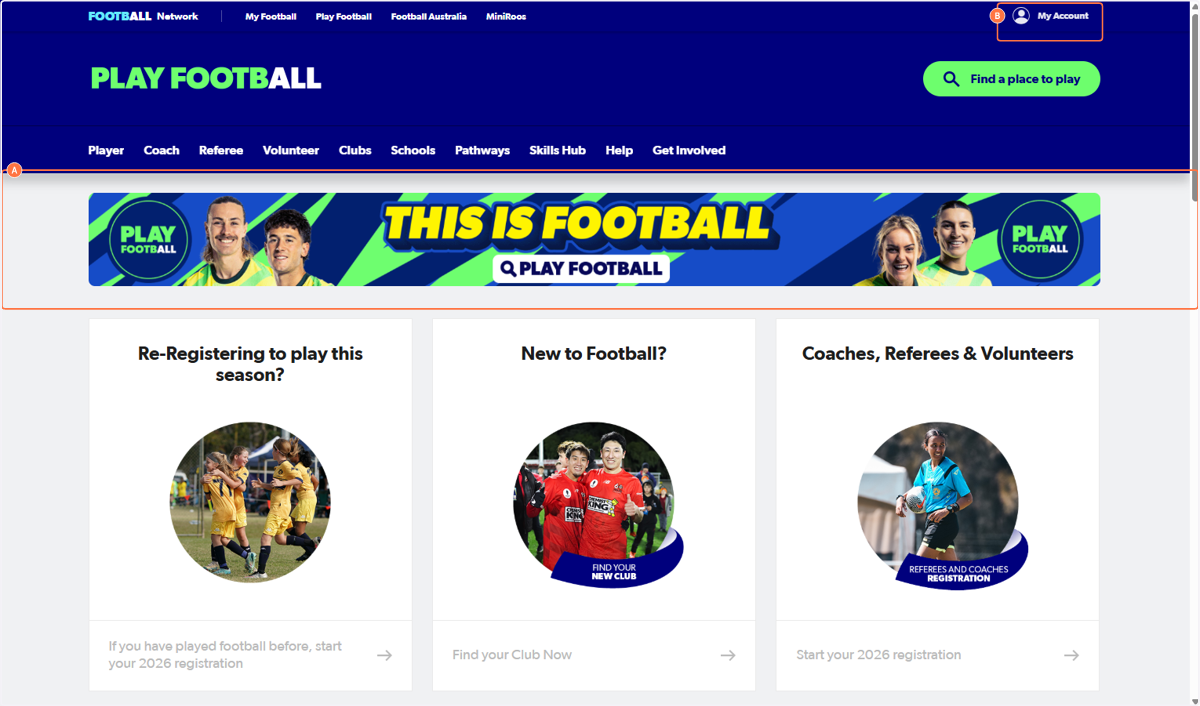
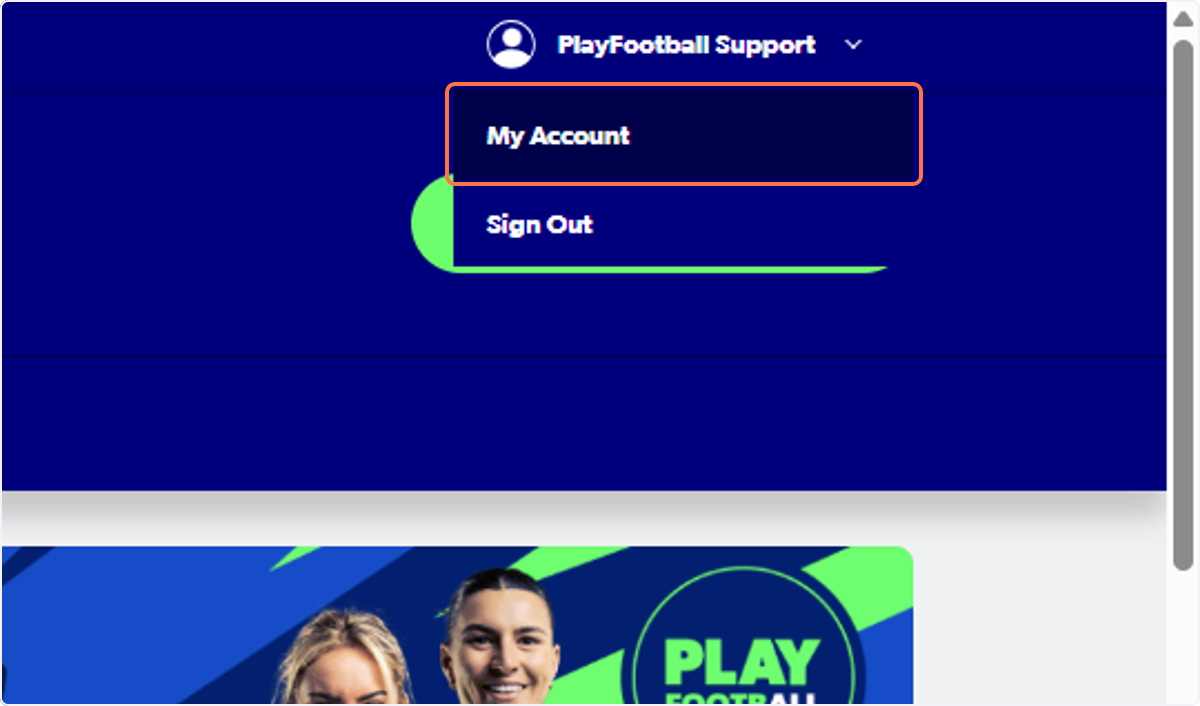
Step 2. Click on My Account
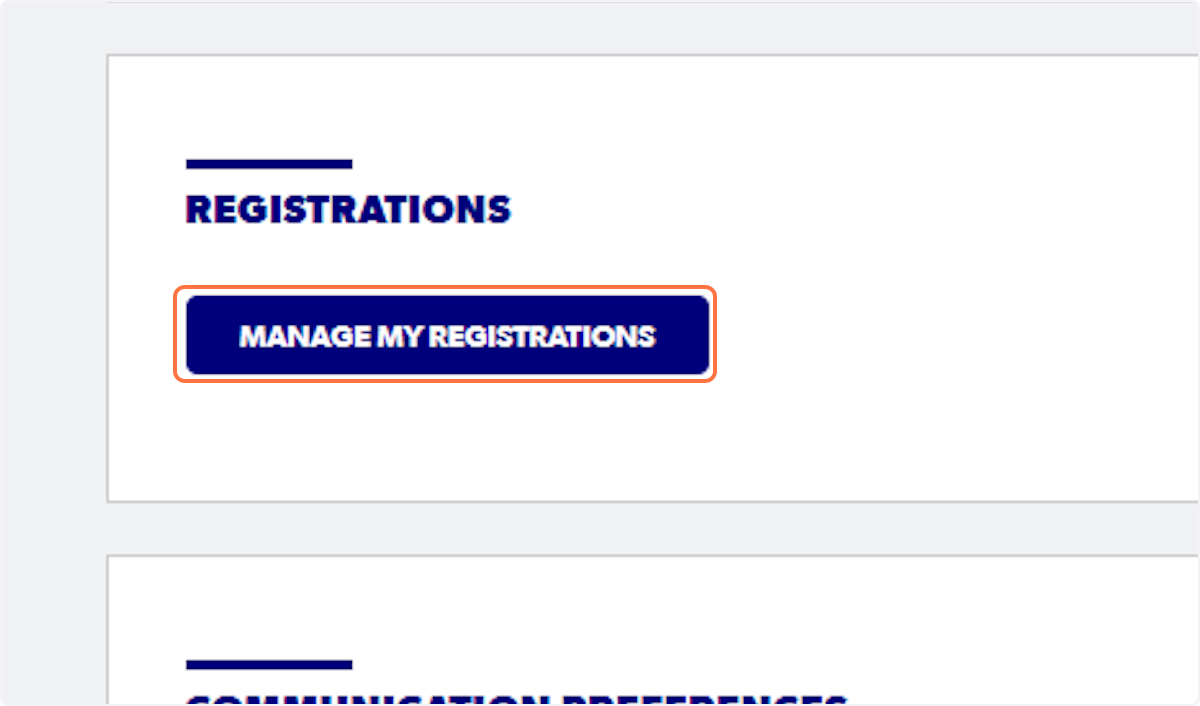
Step 3. Click on 'Manage My Registrations' and sign in again
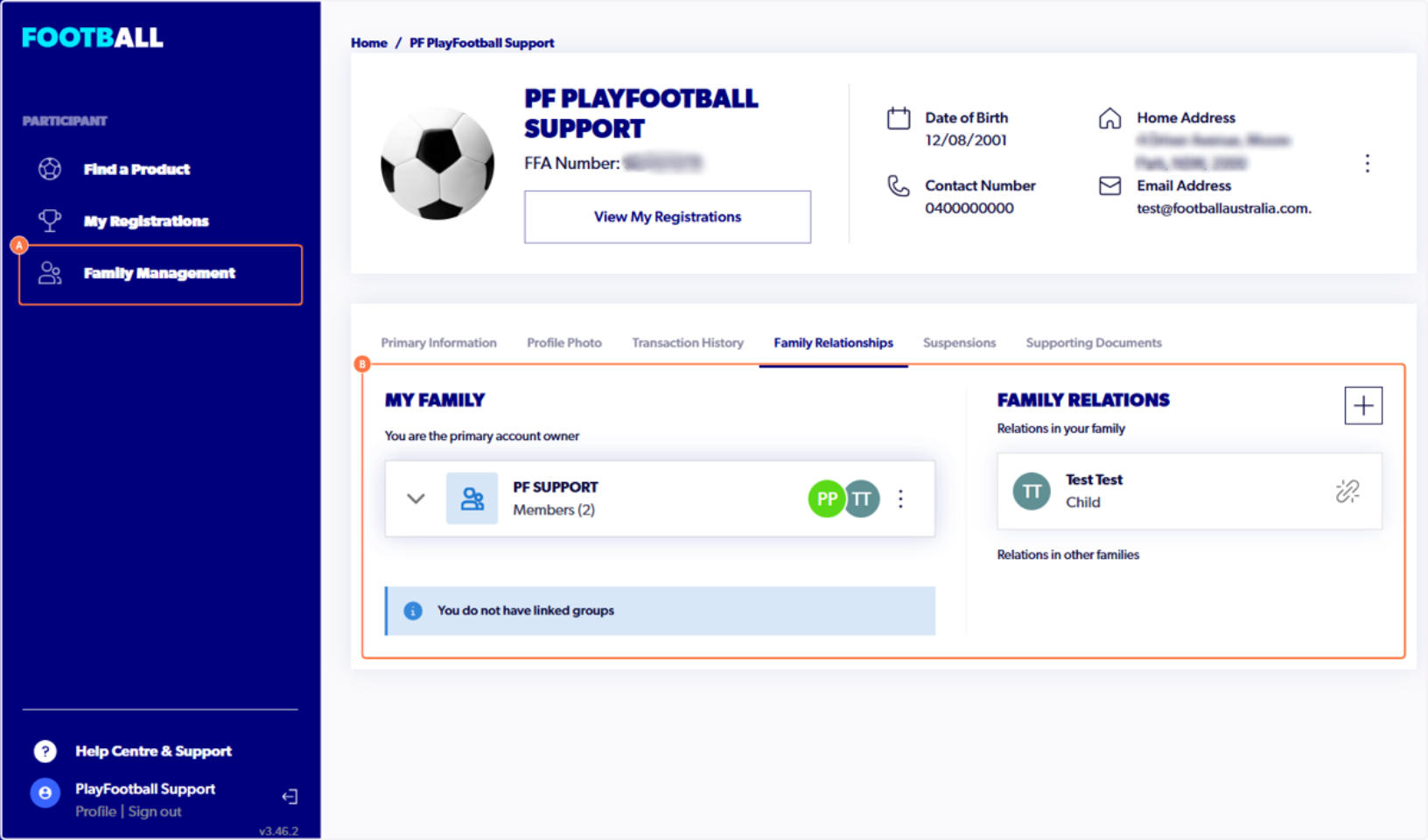
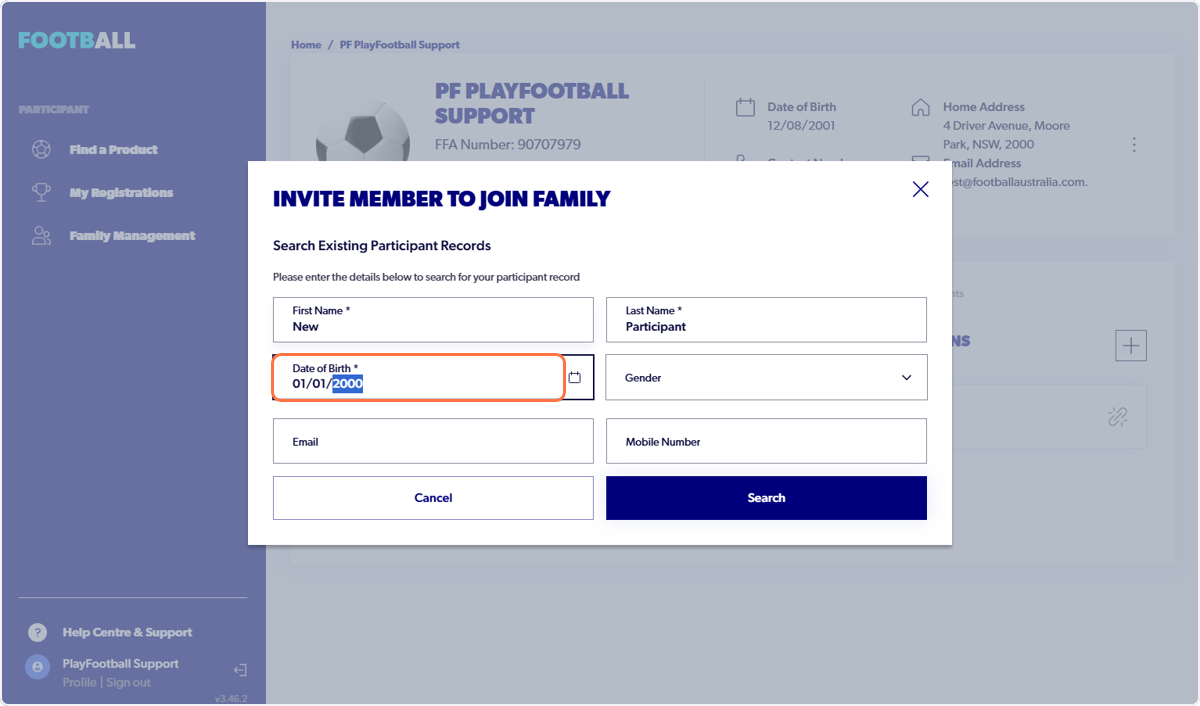
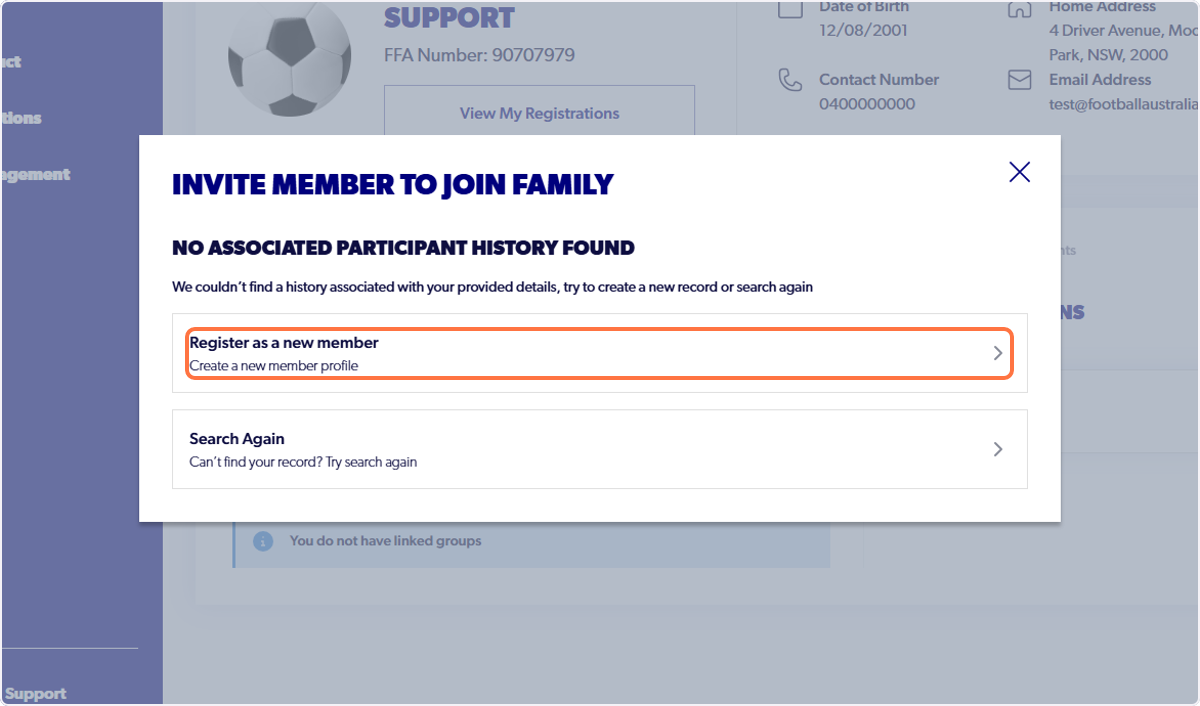
⚠️ Under 'Family Relations,' if you click on the '+' icon and enter the new participant's details, an option will appear to 'Register as a new member.'
When this button is clicked, you will be taken back to the 'Family Management' section.
Currently, there is no way to create a new participant record through this method. Please follow from step 4 to create a new participant profile.
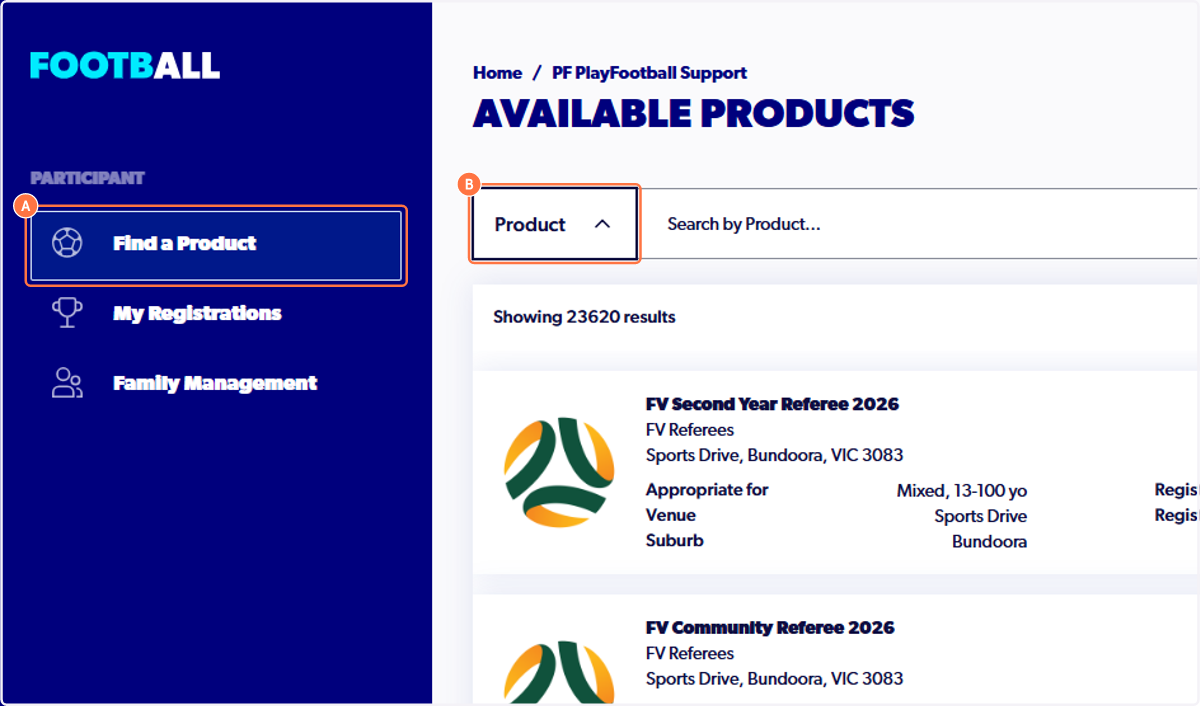
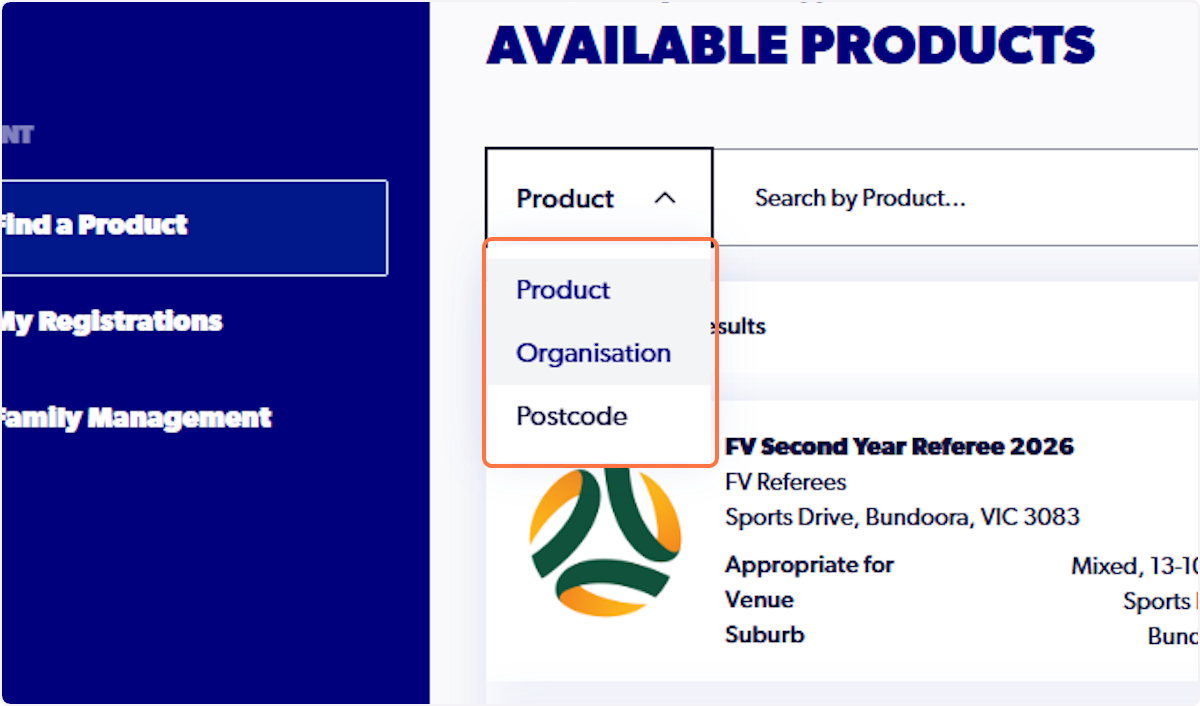
Step 4. Click on the 'Find a Product' tab. Change the 'Product' dropdown to 'Organisation.'
Step 5. Enter the clubs name and select 'Details' next to the appropriate registration product.
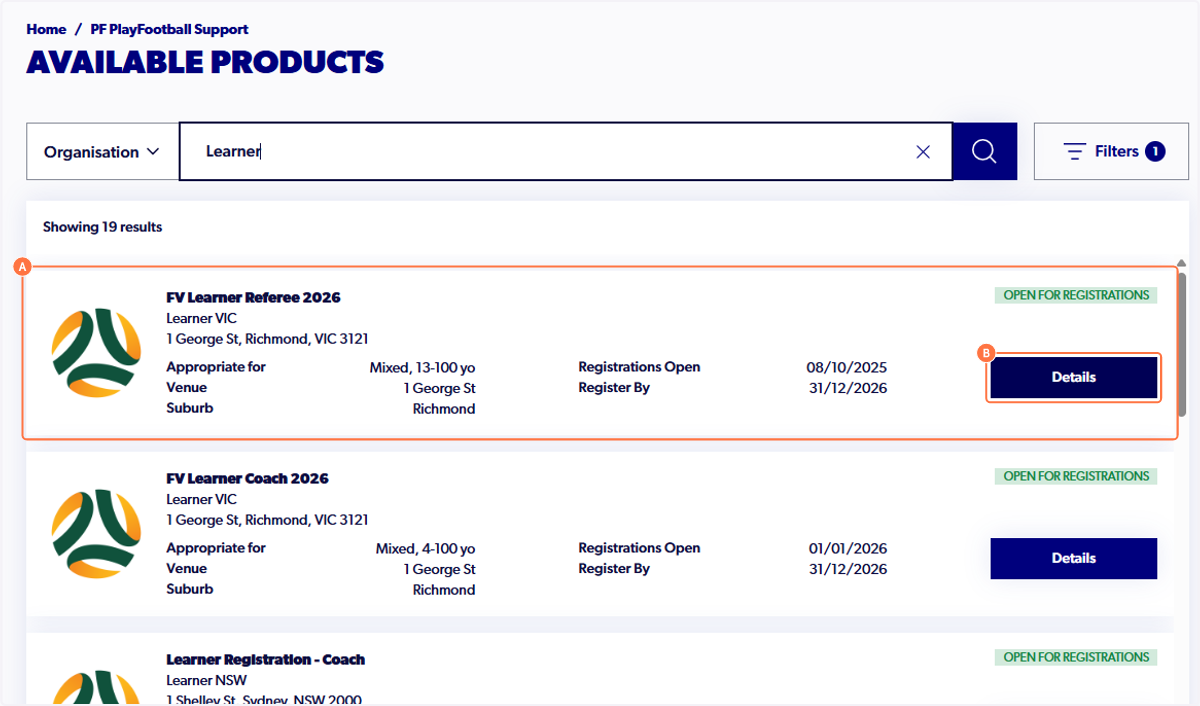
Please note, the search is sensitive and requires an exact match to yield results.
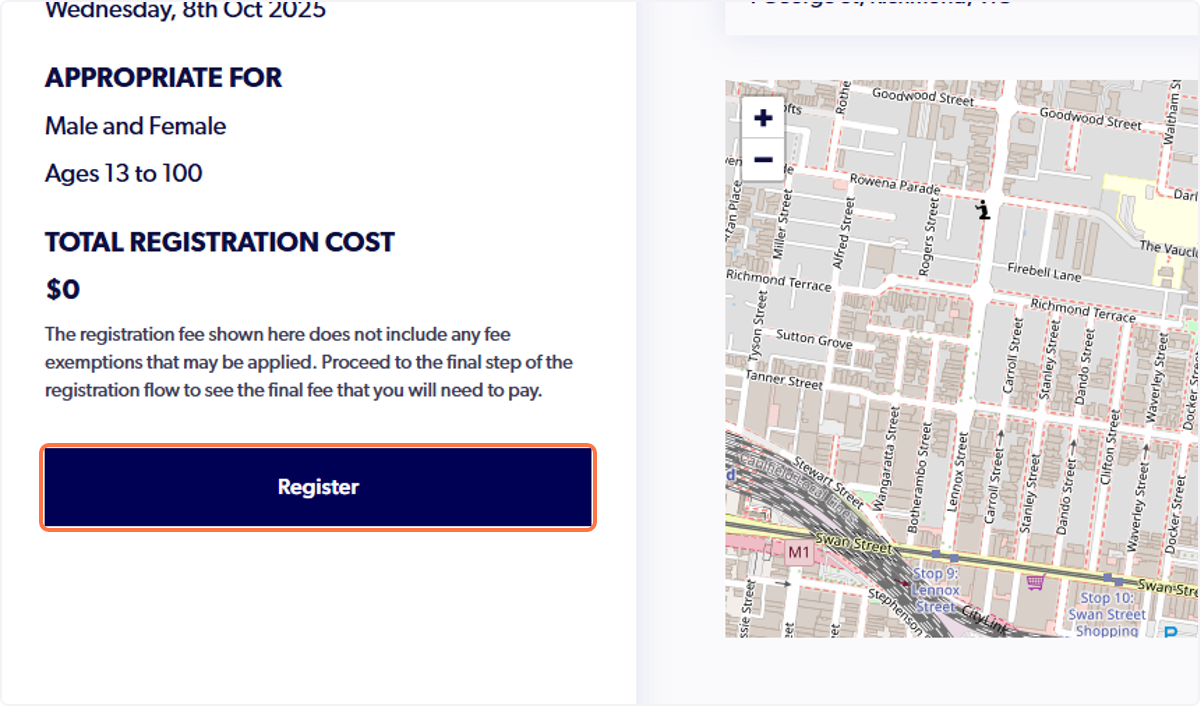
Step 6. Select 'Register'
Step 7. Select 'Somebody Else'
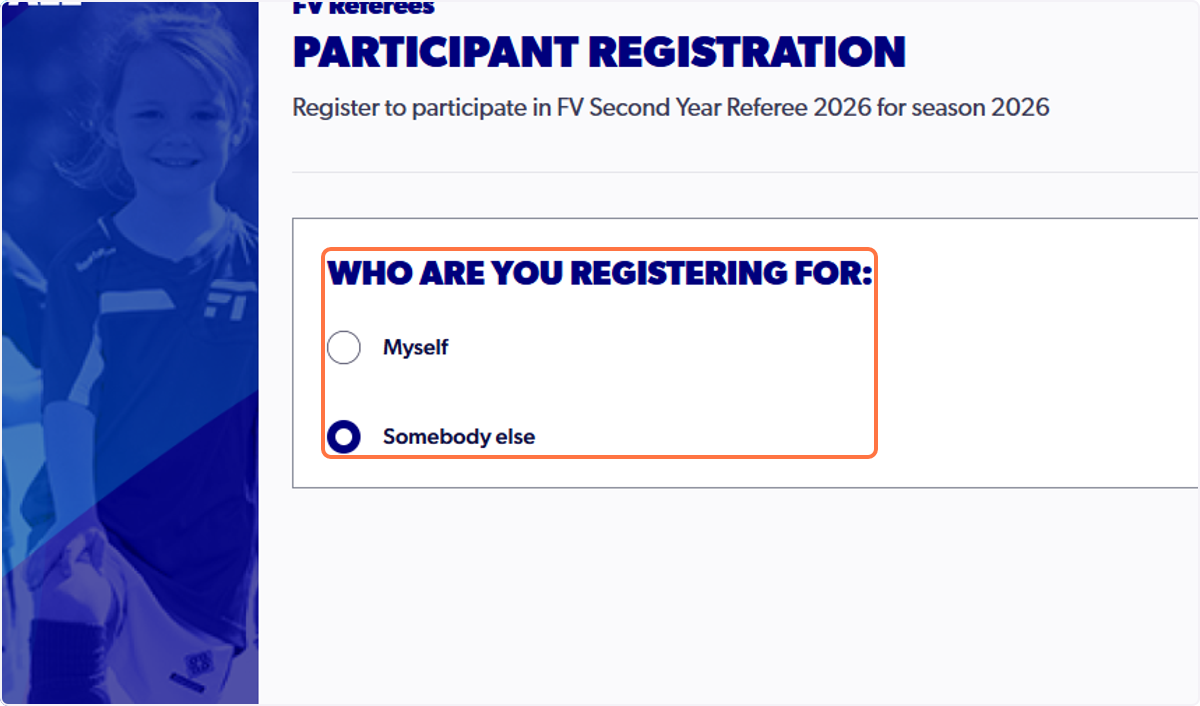
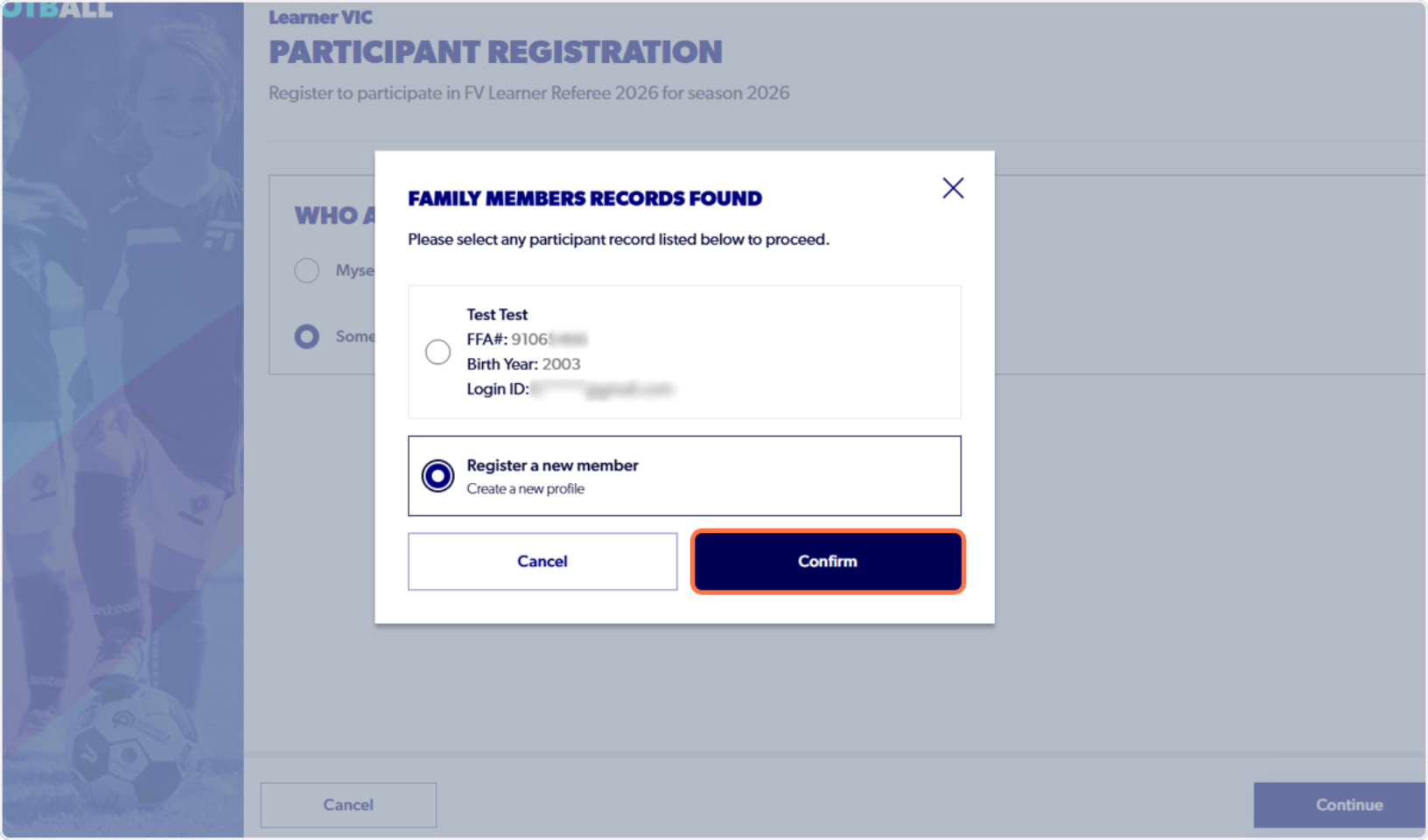
Step 8. Select 'Register a new member' and 'Confirm'
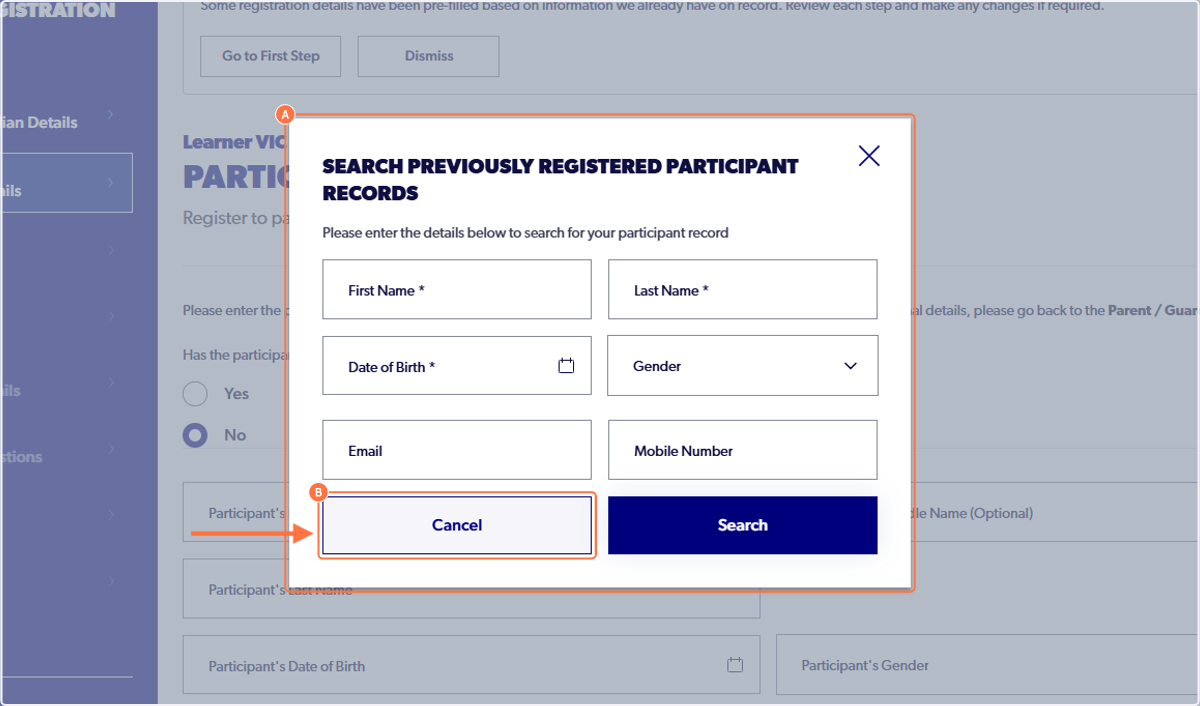
Step 9. Select 'Cancel' on the 'Search Previously Registered...' section.
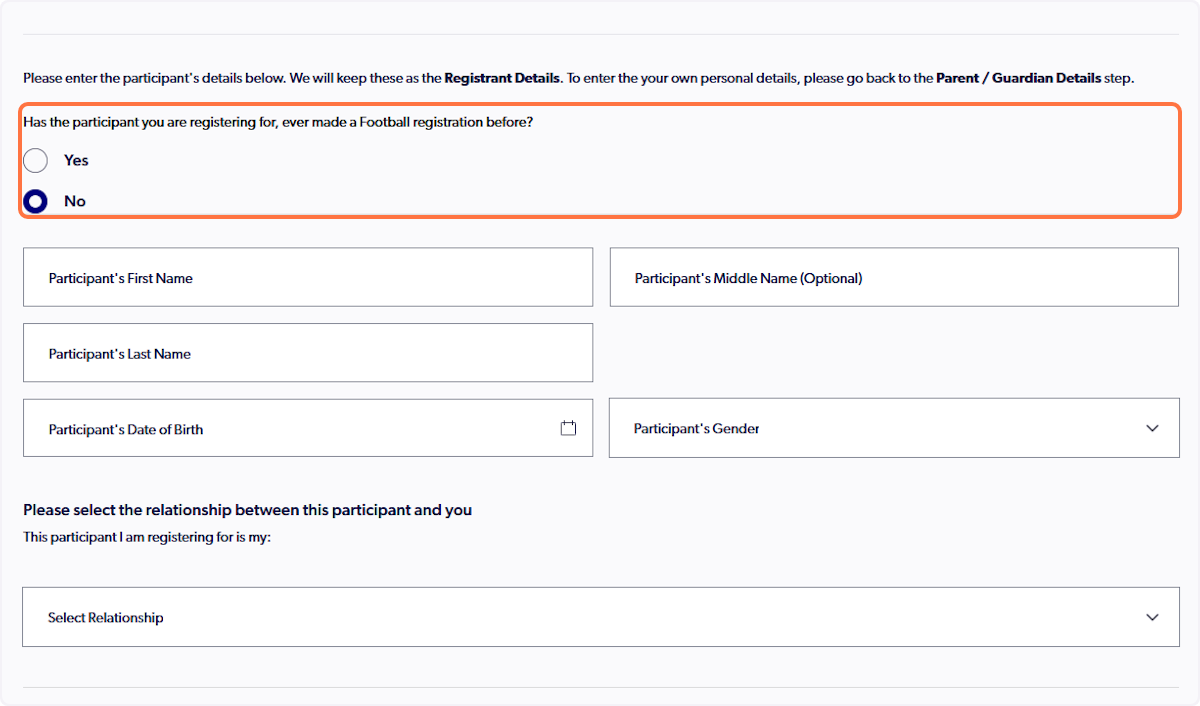
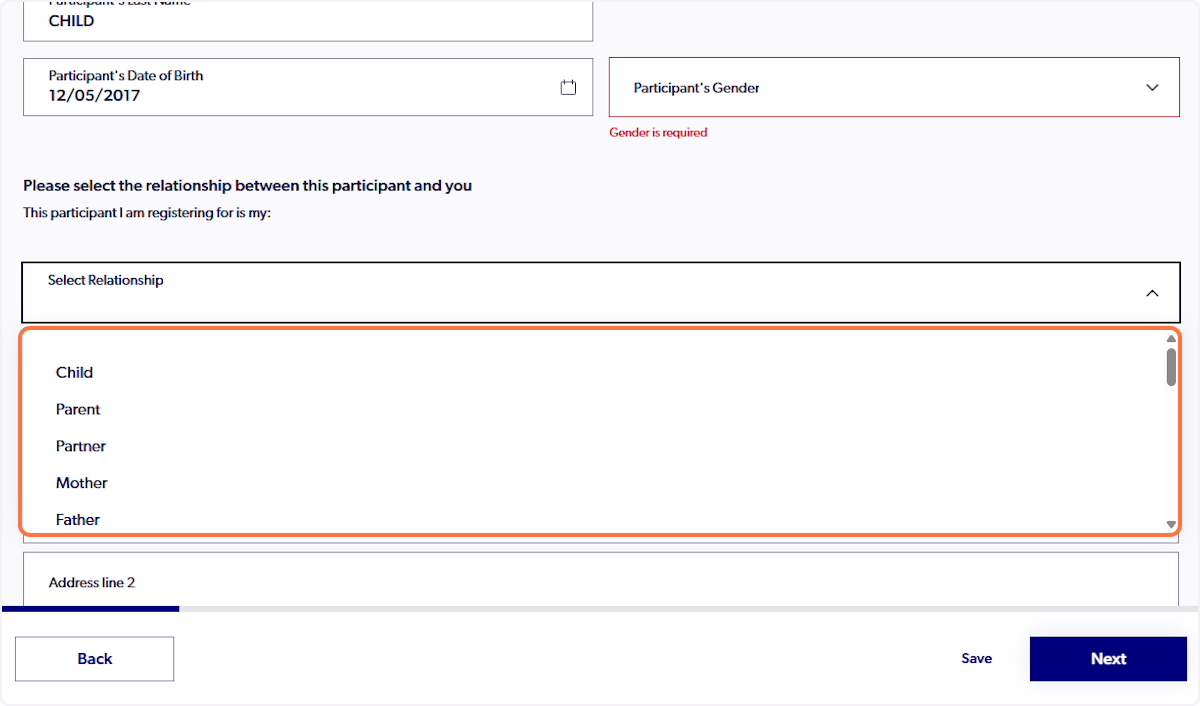
Step 10: Ensure that 'No' is selected at the top and fill out the new participants details
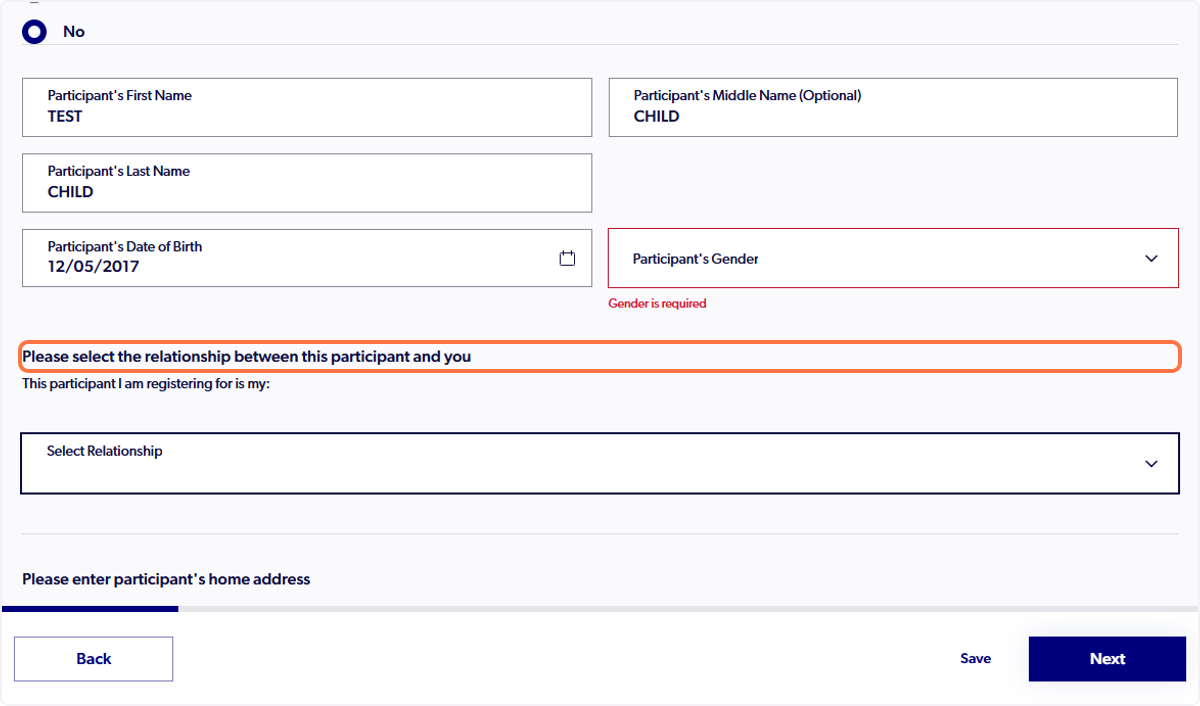
Step 11: A drop down will appear under the participants details to confirm the relationship between you and the participant. Click on the 'Select Relationship' box and choose the appropriate title. This will link the new participant to your 'Family Management' section.
Step 12: Continue with the registration flow and submit payment if required.
⚠️ The following steps are visible once the registration has been completed.
The new participant profile will now be visible under the 'Family Management' tab.
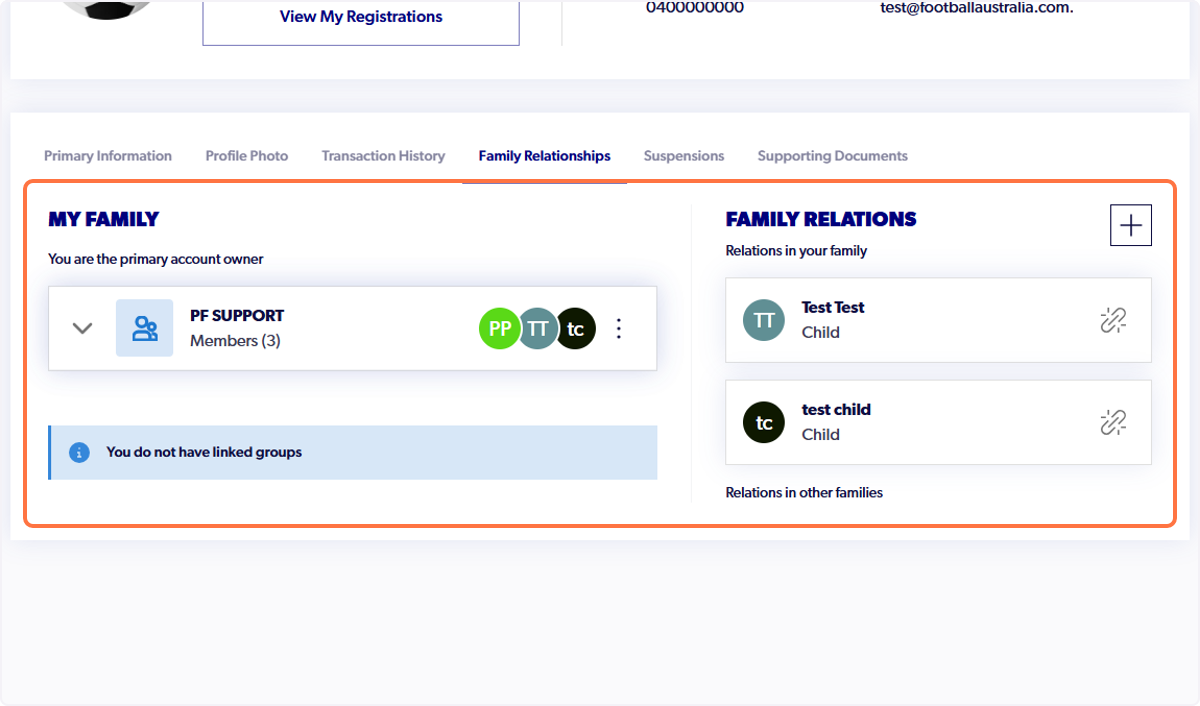
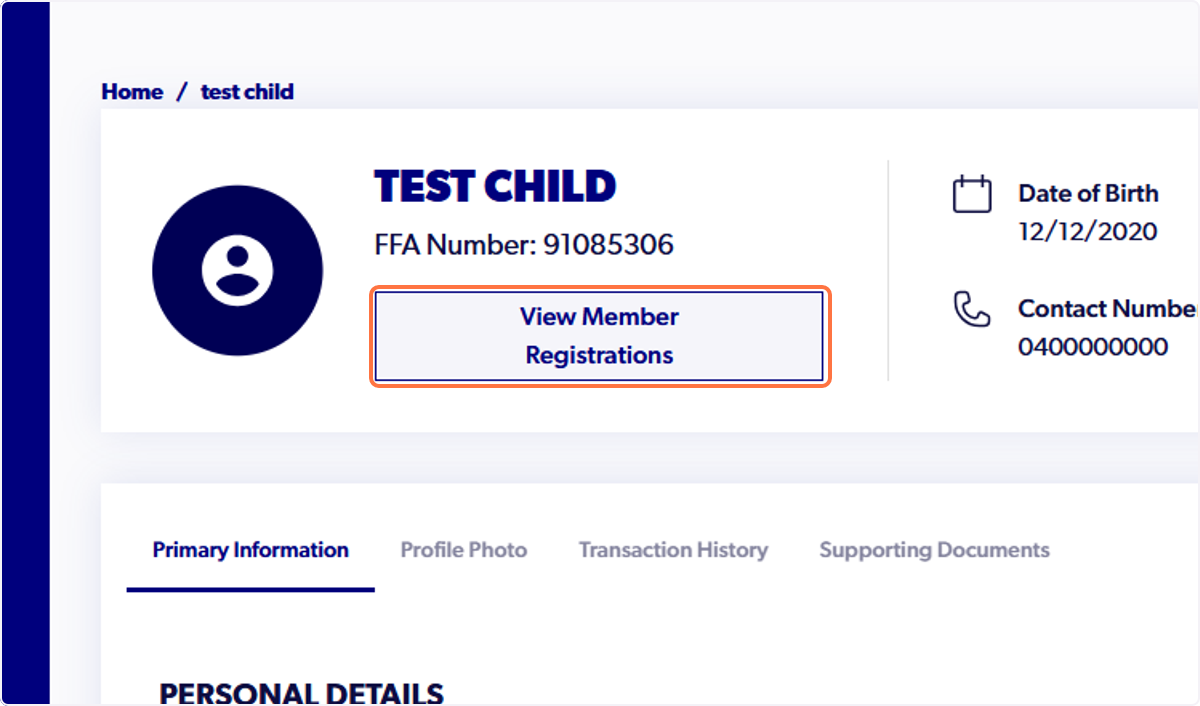
To view their profile details and registrations, click on their name under the 'My Family' drop-down.
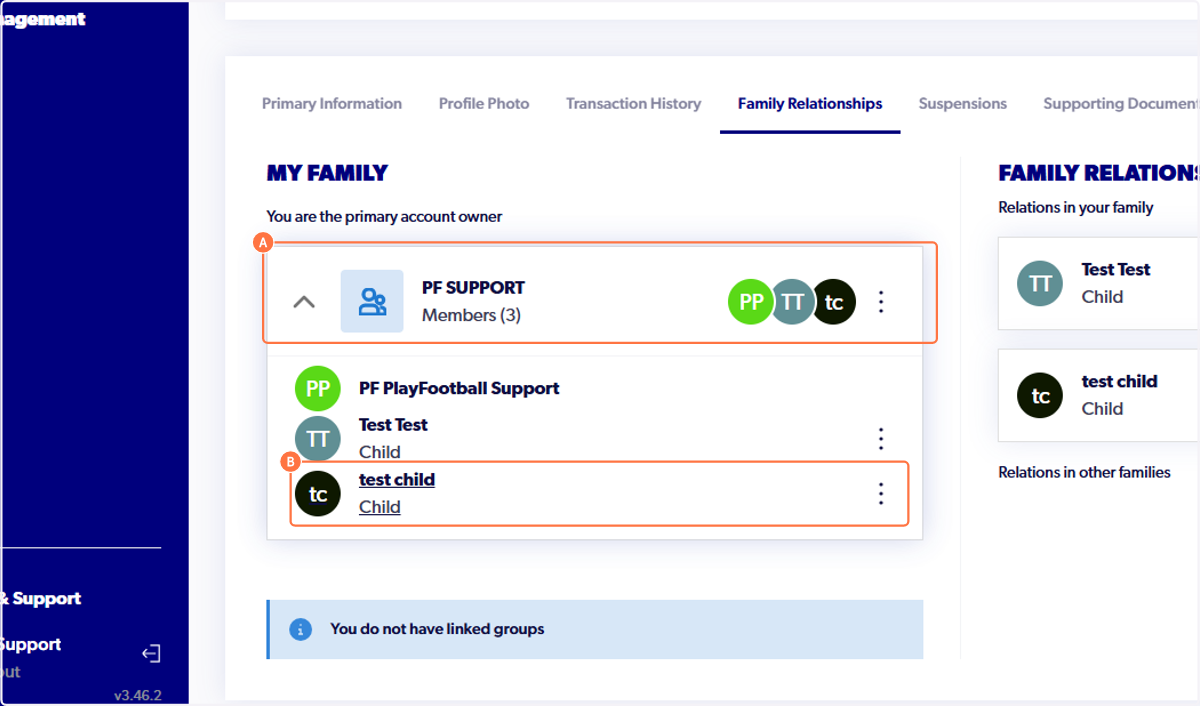
Here you can see their FFA number. To view registrations, select the 'View Member Registrations' tab.