Please note this feature is only available to regulatory admins (National, State & Associations)
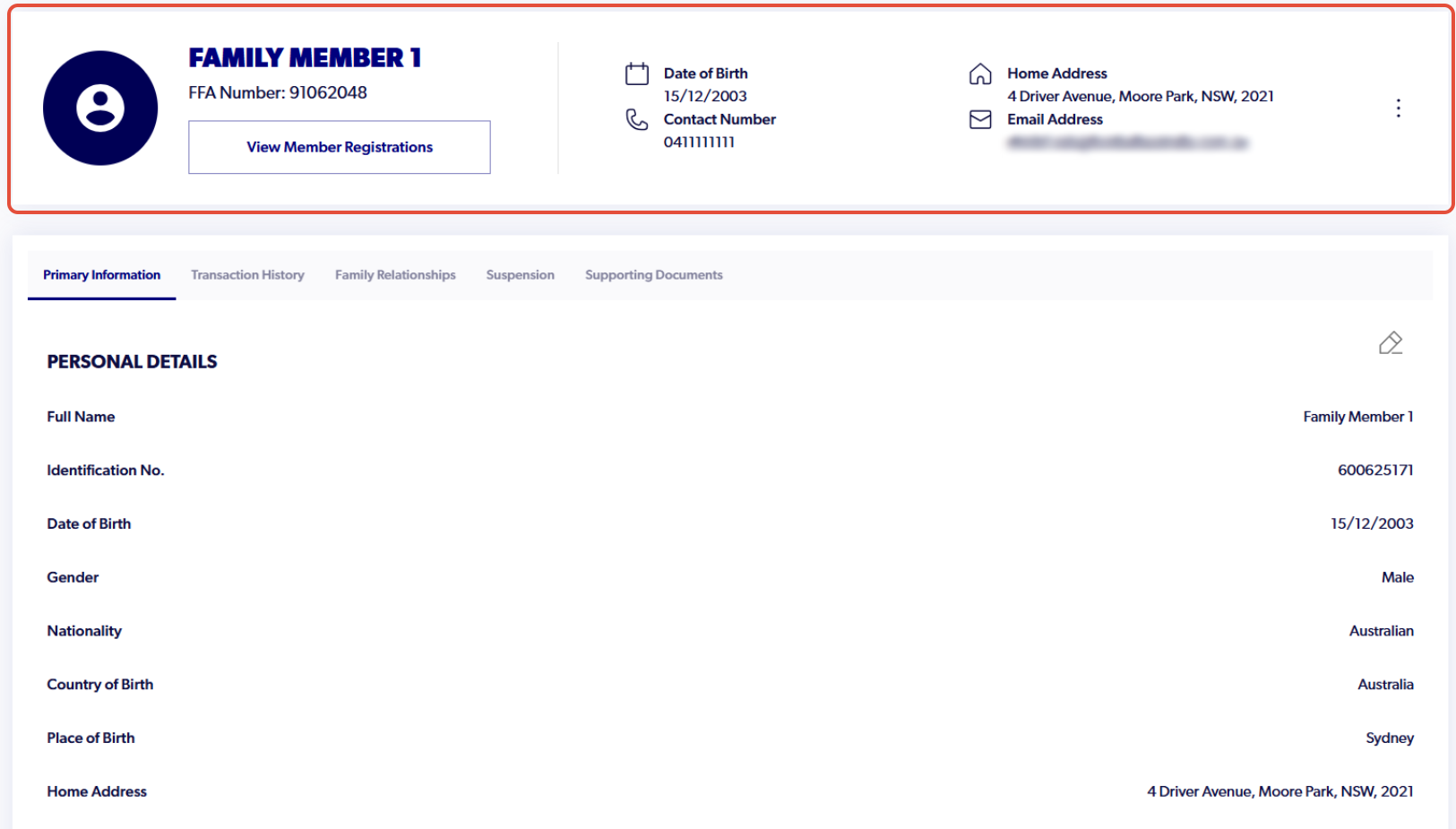
1. Navigate to the participant profile
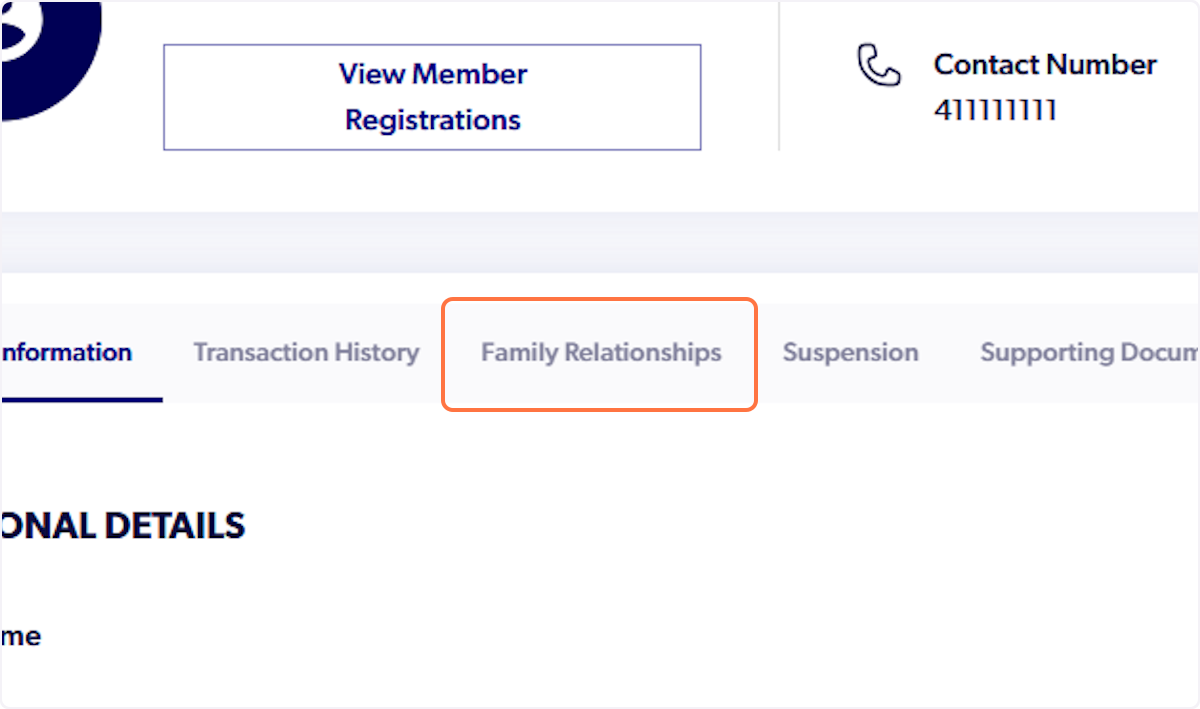
2. Click on 'Family Relationships'
3. Select the drop-down arrow to display all linked participants

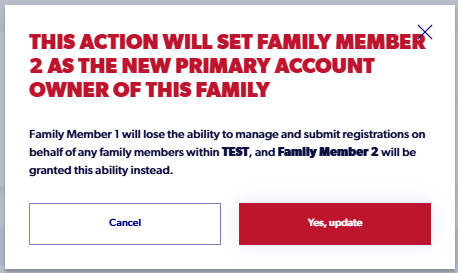
4.Select the three dots next to the family members name and click 'Set as Primary'. Read the pop up and select 'yes, update' to confirm the change. 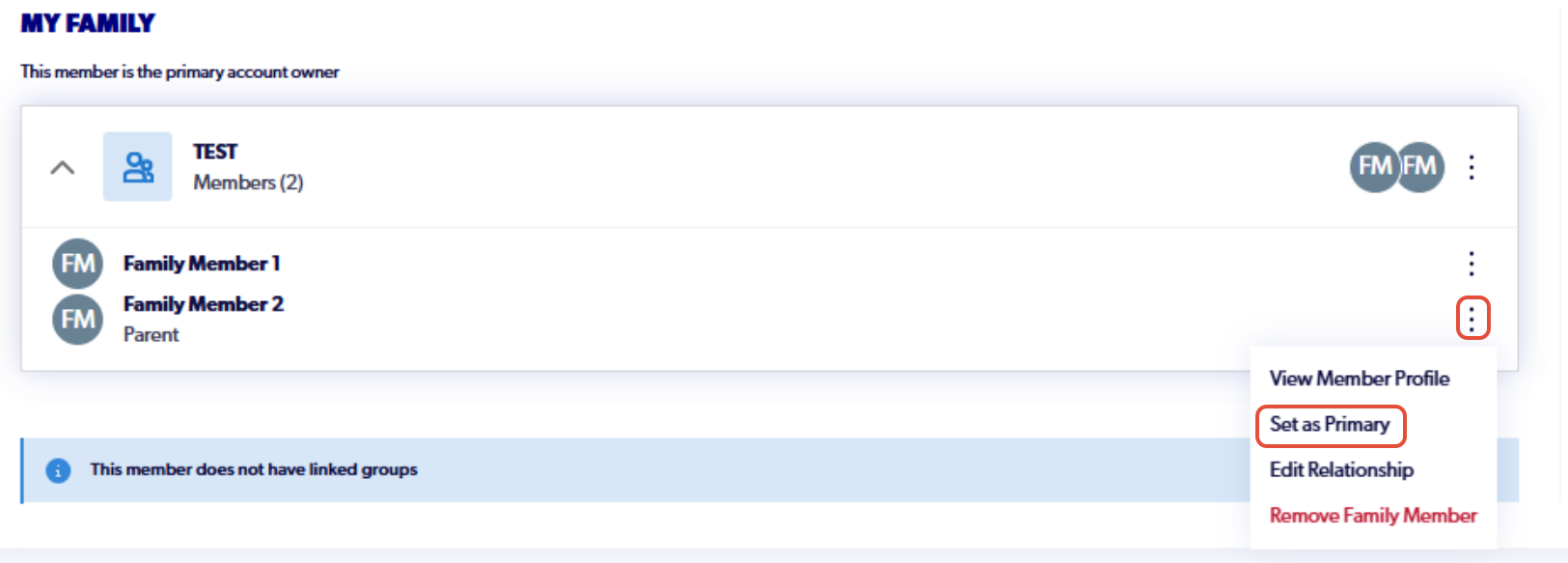
5. Now on the participant profile of the new primary account holder, they will have more access to linked family members.
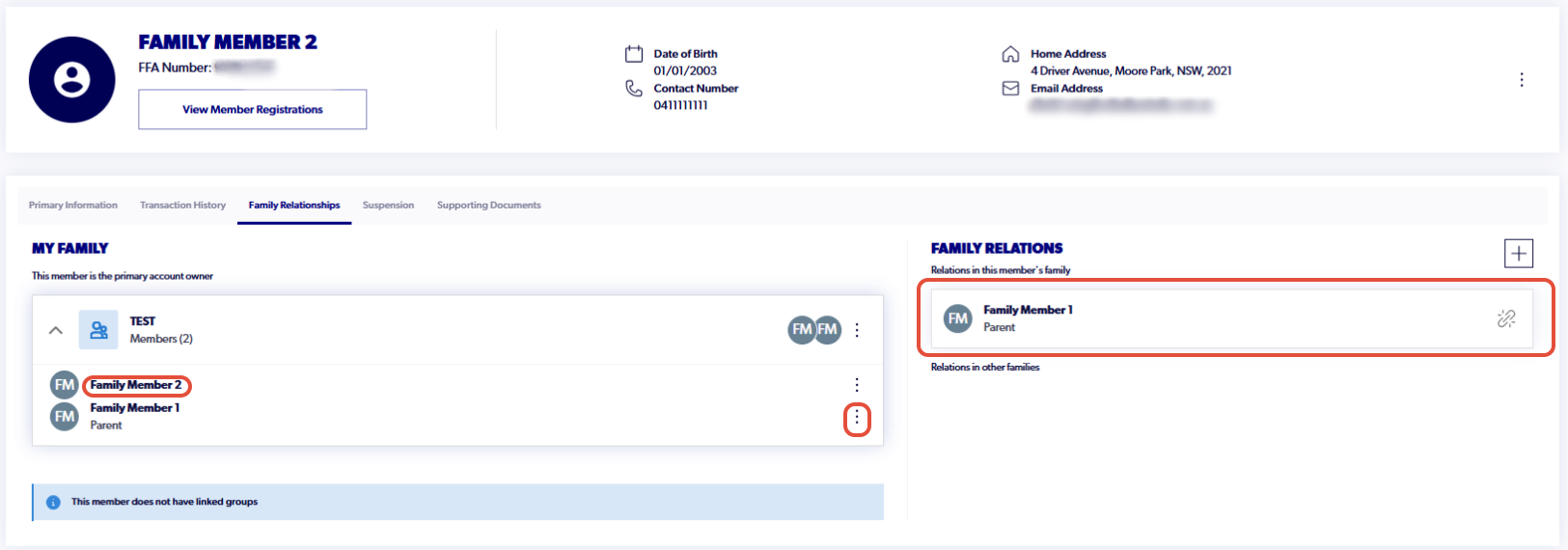
6. Once updated, the participant must update their profile by unlinking the current primary account holder (this can be done by an admin if needed).

7. Once the primary account holder has been unlinked, the participant will need to sign into their account and claim the record of the new primary account holder.
The following is a link to a support article that will guide participants through the claiming process: Participant - Claiming a participant record