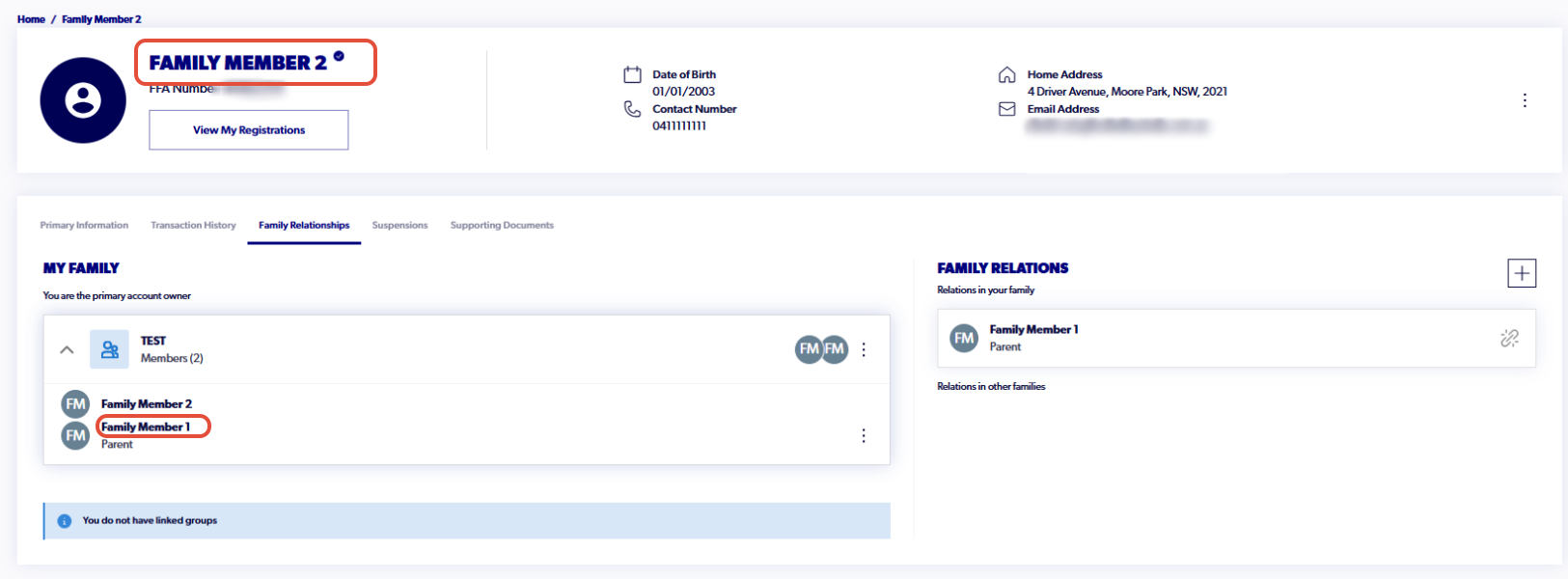
The following support article outlines how to update the primary account holder while maintaining your family group as a participant. This will assist in cases where the parent has set up the child as the primary account holder and wants to update this to the parent.
If you do not already have a linked family group on the current primary profile, you can proceed to step 7 once signed in.
1. Go to playfootball.com.au. Sign into your Football Network account
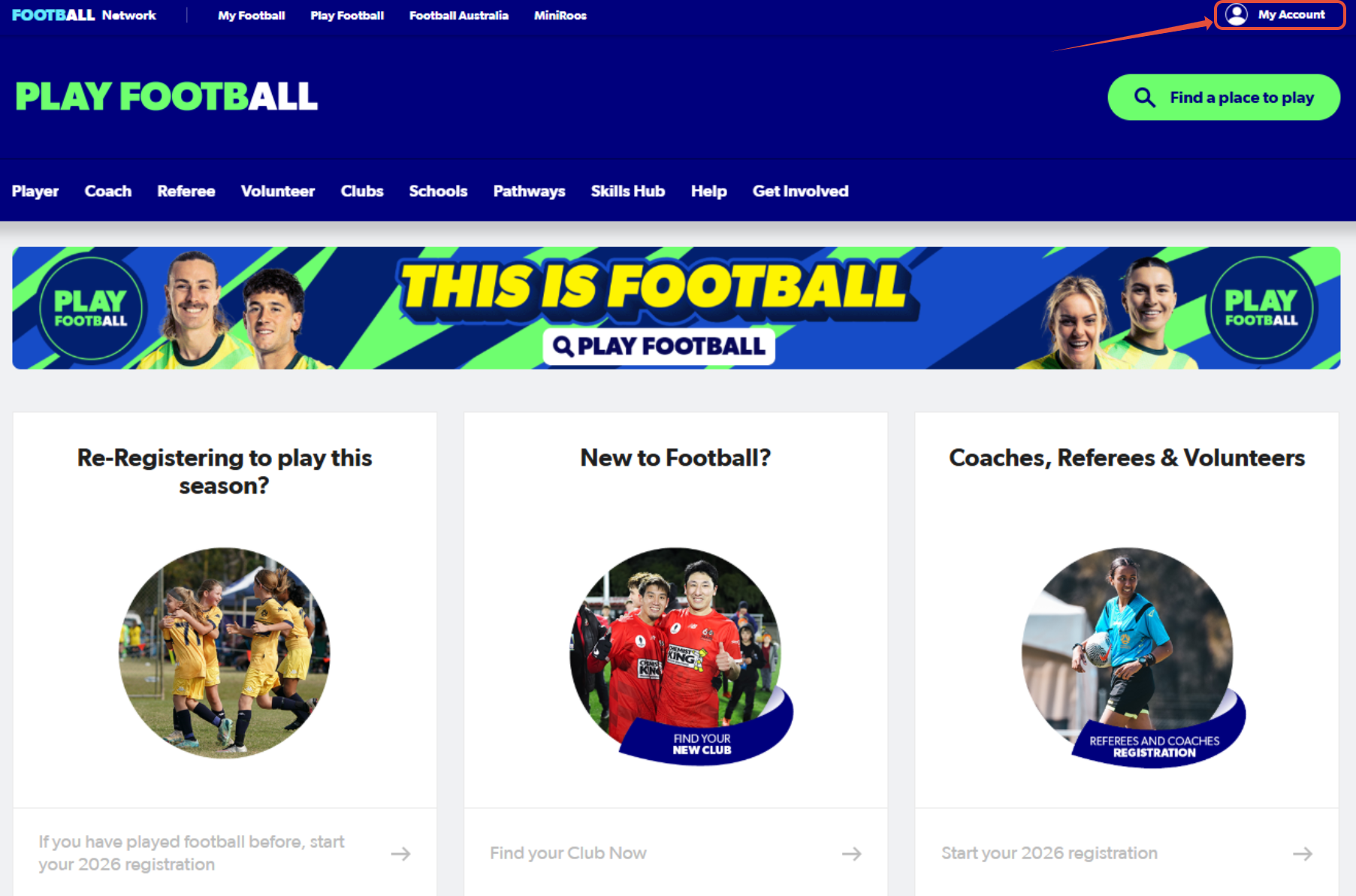
Once you sign in, your name will appear in the top-right hand corner. Please hover over your name and select, 'My Account' again.
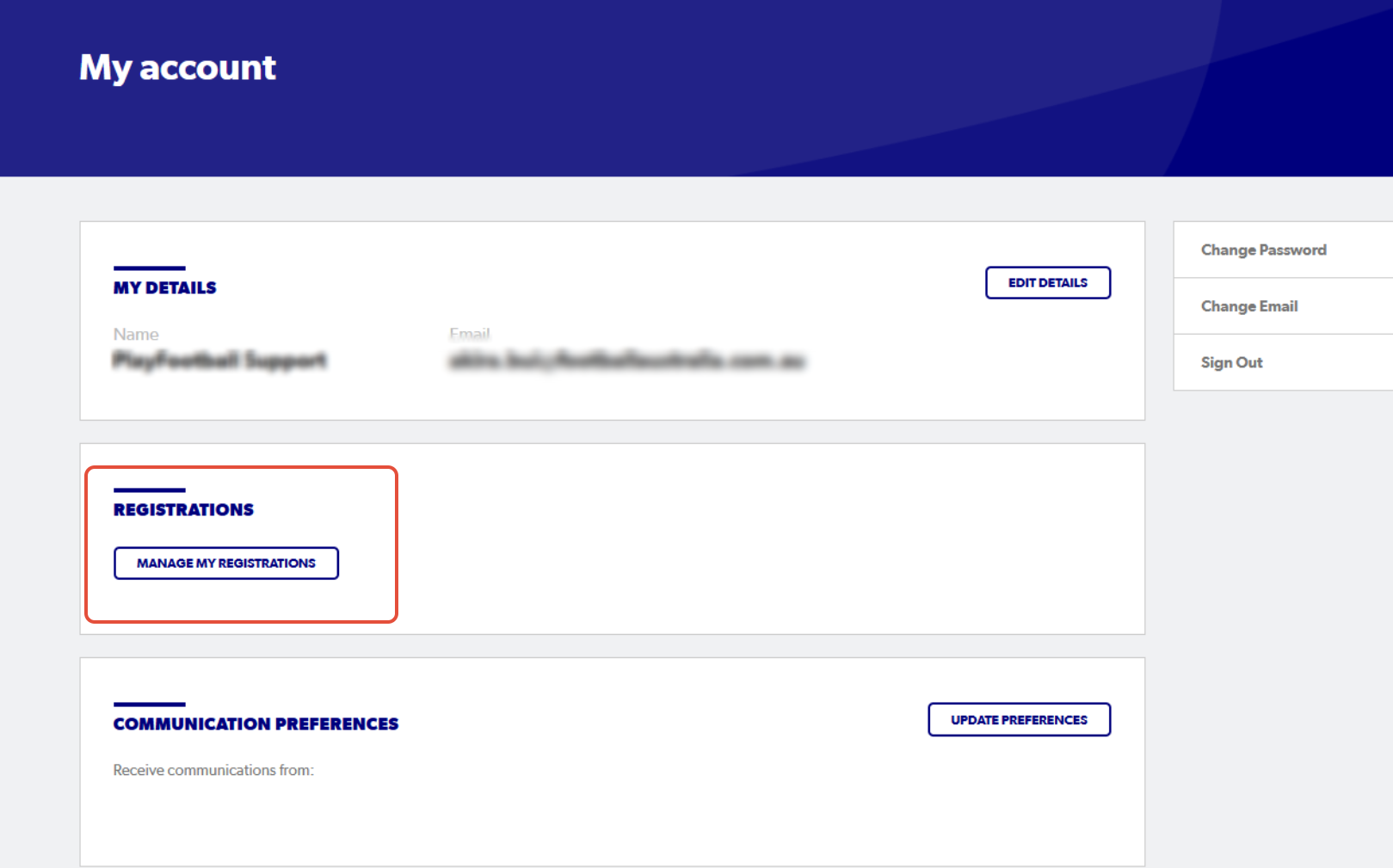
2. Select 'Manage My Registrations'
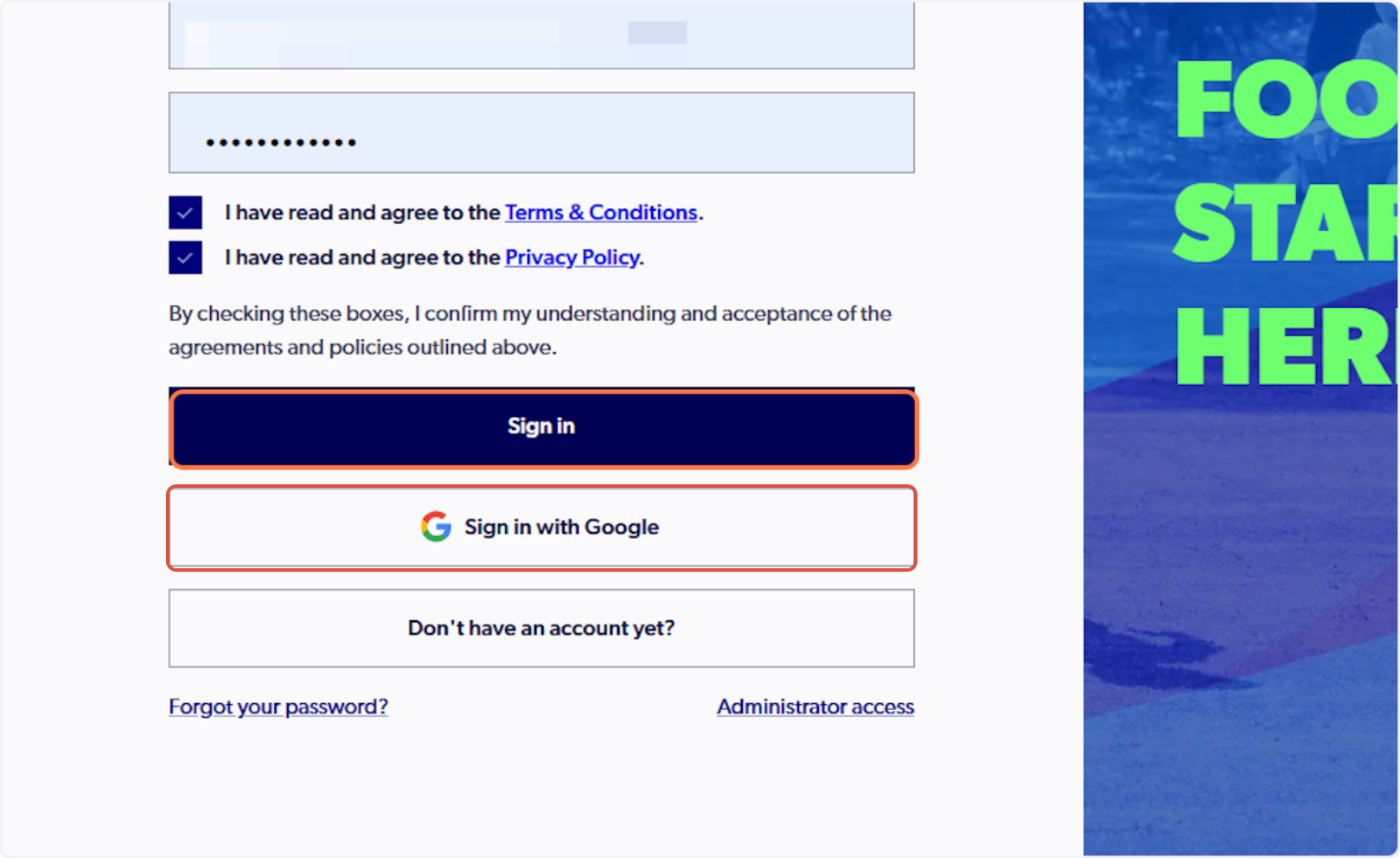
3. Sign in to PlayFootball
Please note: if you have created your account using Google, you must select 'Sign in with Google'
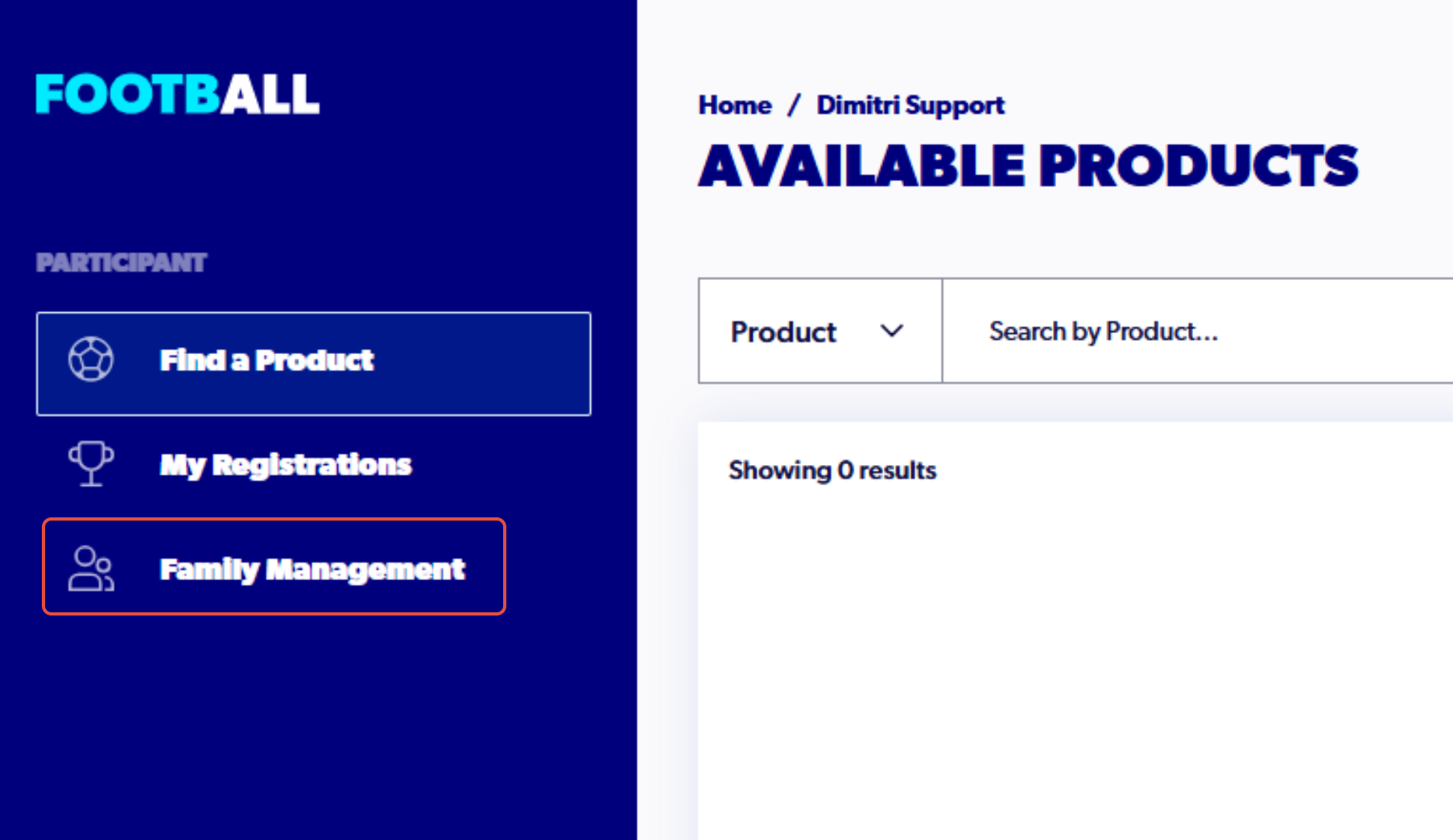
4. Select 'Family Management'
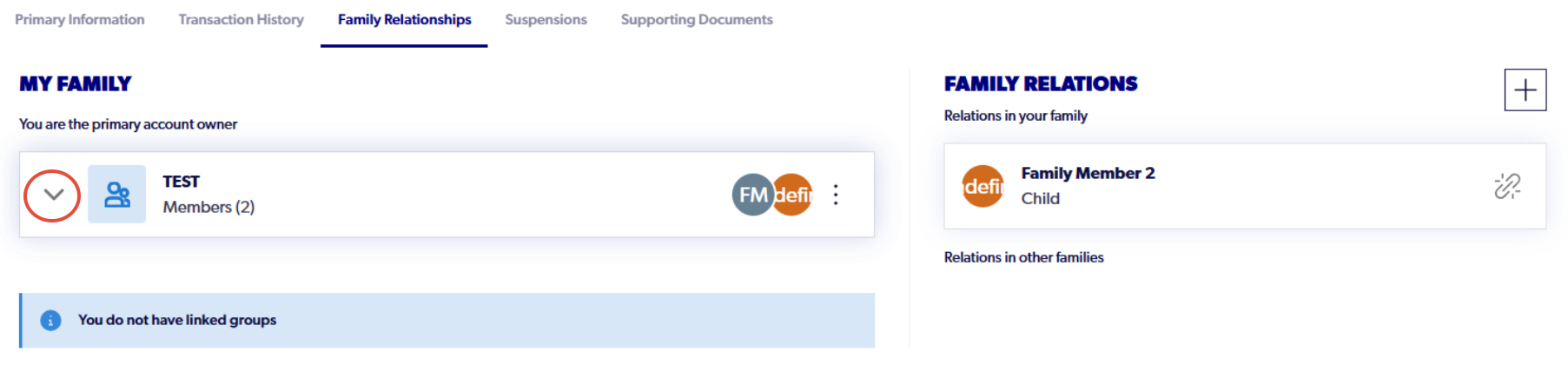
5. Click the drop-down arrow to display all the members linked to your Family
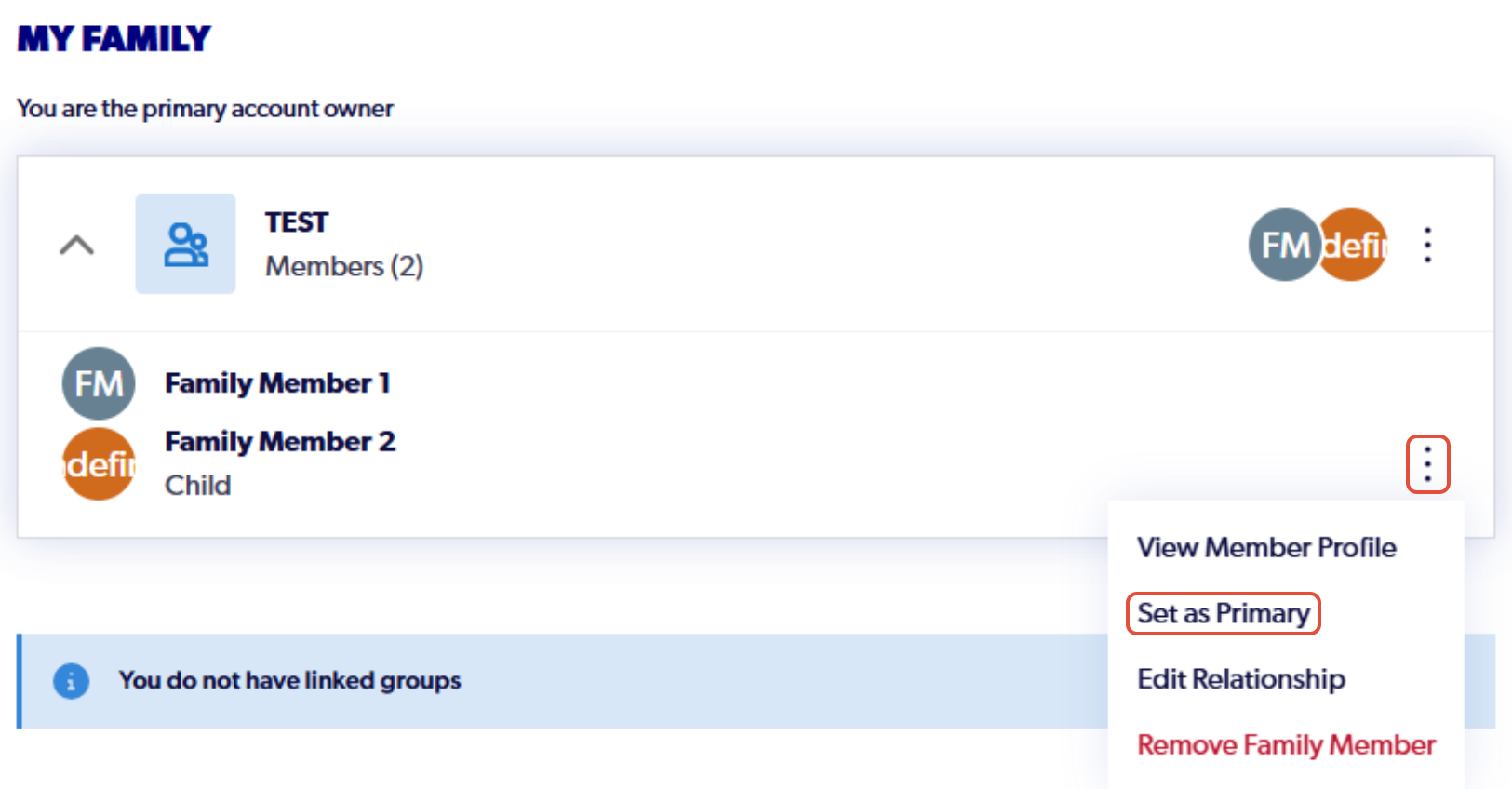
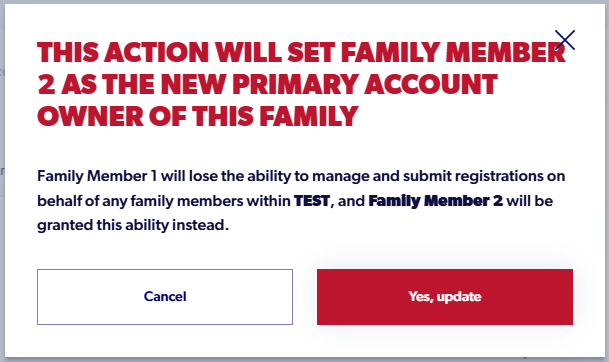
6. Select the three dots next to the family members name and click 'Set as Primary'. Read the pop up and select 'yes, update' to confirm the change
7. Once this update has been made, navigate to 'Profile' in the bottom left. Select the three dots next to the participants details and select 'unlink from all accounts.'

Please note, no registration data or history is lost during this process.
8. Sign out and sign back in to refresh the login. Once back inelect 'profile' in the bottom left.
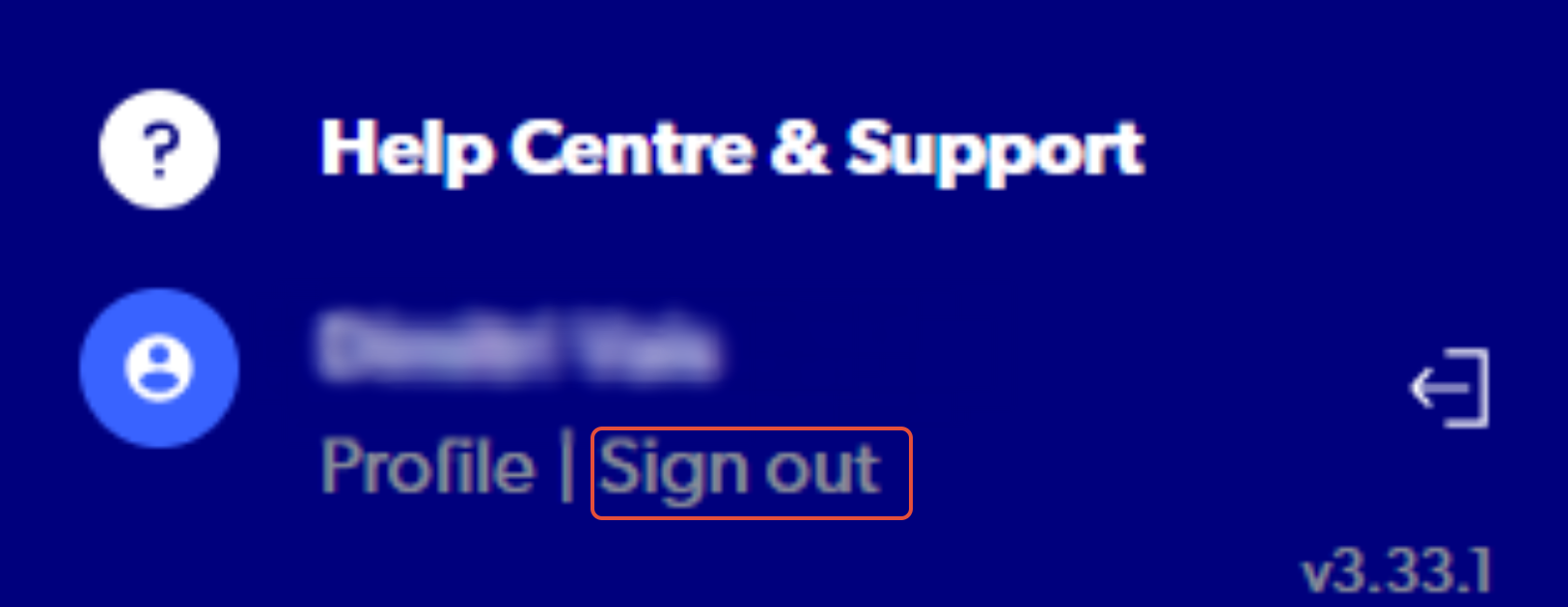
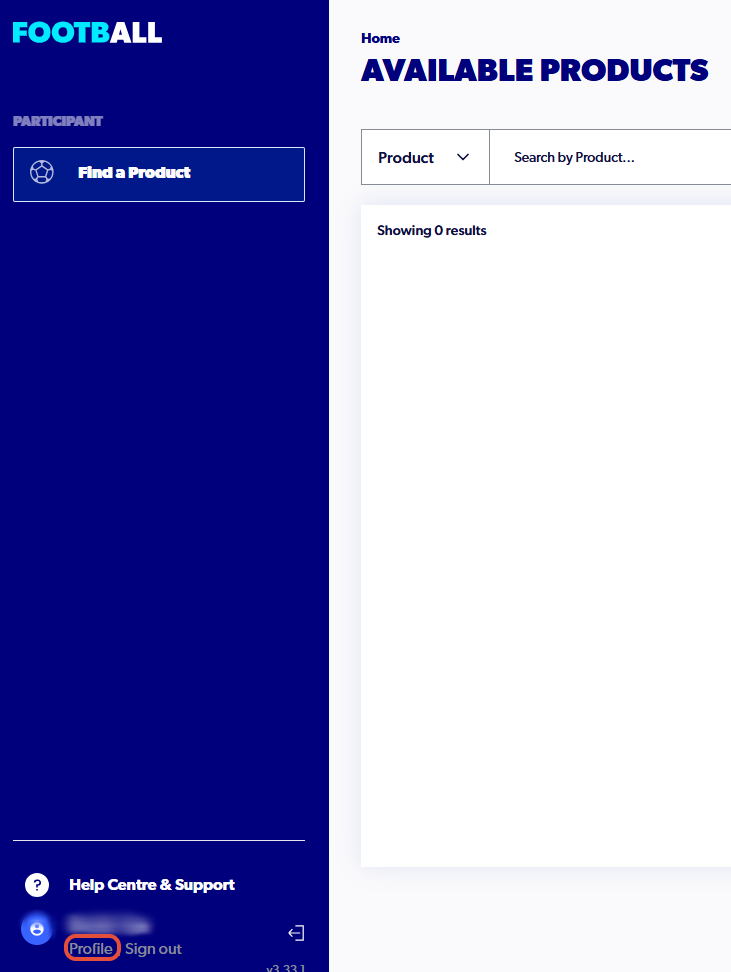
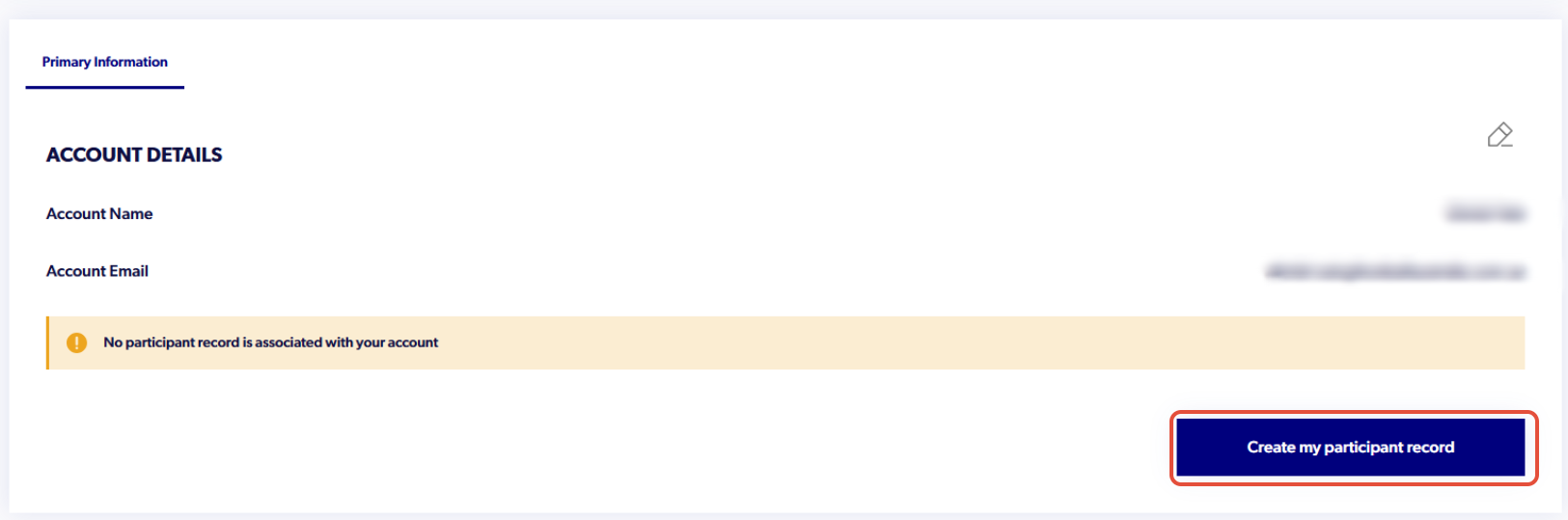
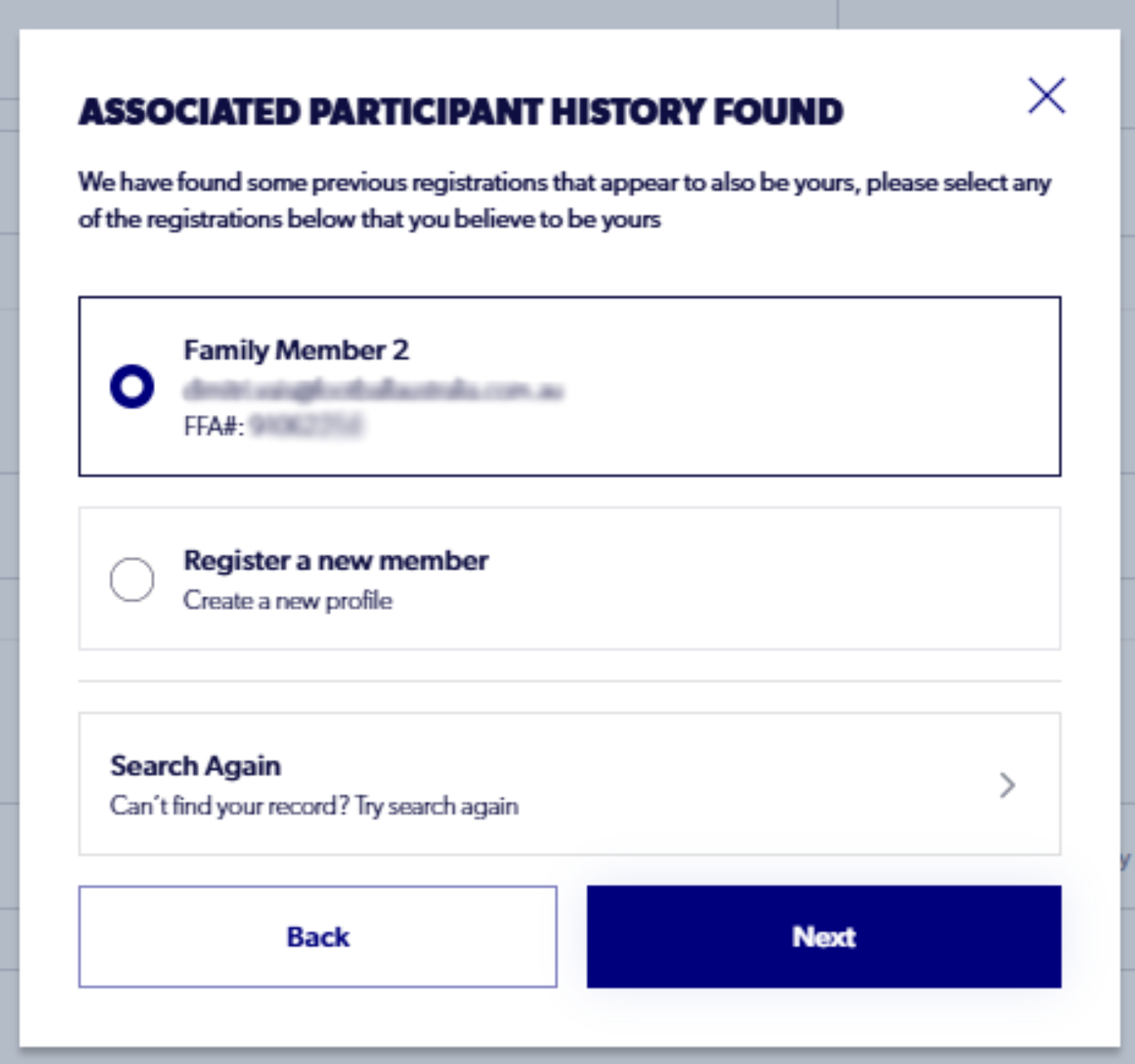
9. Select 'Create my participant record' and search for the details of the new primary account holder
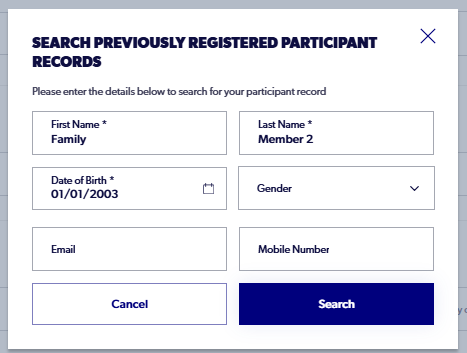
Search for the record using the first name, last name and DOB of the new primary account holder
Select their record when it appears and complete the code verification.
For Gmail accounts, please check the promotions tab. Similarly, check junk and spam inboxes if you do not see this code within 60 seconds.
10. Once the record is claimed, the new primary account holder will be active, and the previous family member will be linked in Family Management