The "Bad Request" or "404 error" is an error that can be resolved by clearing your caches on your browser or alternatively using an incognito tab.
Clear Cookies
To clear cookies, go to your browser's settings or history menu, find the "Clear browsing data" option and select "Cookies and other site data." Choose the desired time range (like "All time") and confirm the deletion.
For Google Chrome
Click the three-dot menu in the top-right corner and select More > Clear browsing data.
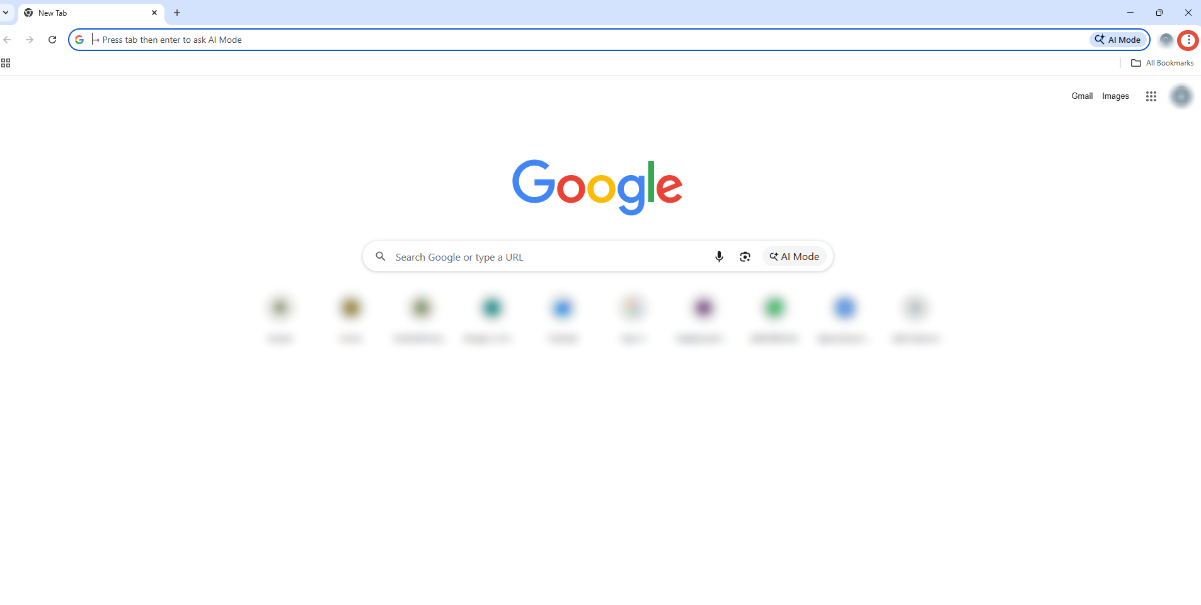

Choose a time range from the drop-down menu,"All time" will clear all cookies and check the box for Cookies and other site data.
(Optional) Select other data like "Cached images and files" if desired.
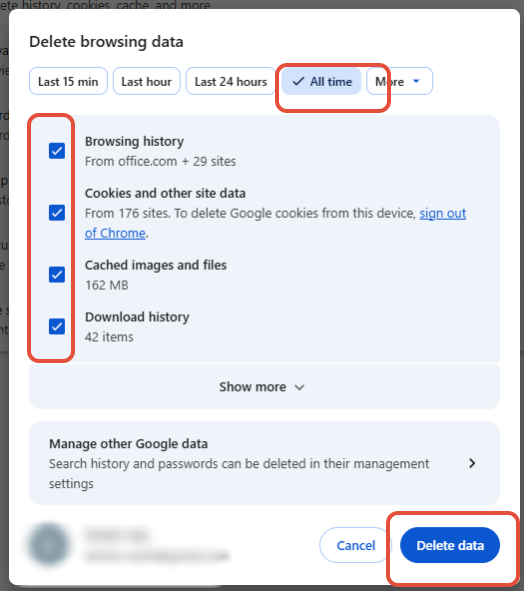
Click "Delete Data".
For Microsoft Edge
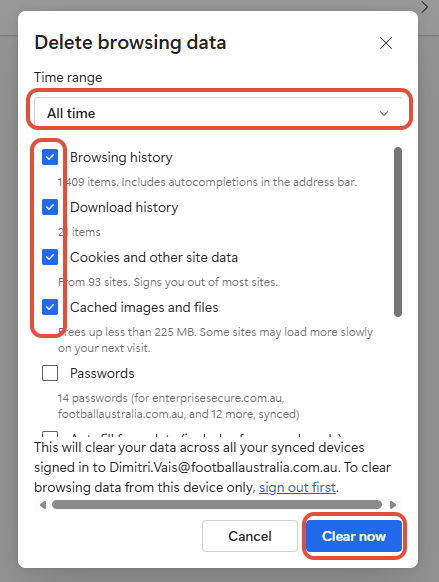
Click the three-dot menu in the top-right corner and select Settings.

- Go to "Delete Browsing data" and change the time to All Time. Tick the first for boxes and select "clear now"
Incognito
To use a private browser, open a new window or tab in a private mode like Chrome's "Incognito" or Edge's "InPrivate," either by clicking the menu icon (three dots) and selecting the appropriate option or by using a keyboard shortcut.
Common shortcuts are Ctrl + Shift + N for Windows and ⌘ + Shift + N for Mac, or Ctrl + Shift + P for Firefox.